Simulation
| Site: | NiryoAcademy |
| Course: | NiryoStudio Simulation Quickstart |
| Book: | Simulation |
| Printed by: | Guest user |
| Date: | Thursday, 1 October 2026, 4:49 PM |
Install & Run the Simulation
The simulation on NiryoStudio is only available on the version 1.11.0 and higher version
🚨 Before running the Ned2 simulation, please make sure your system meets the following requirements:
⚠️ WSL is required when using Windows!Please install and enable Windows Subsystem for Linux before following the course setup.Operating System
- Windows 10 and later with WSL 2.0 installed (How to install WSL 2 on Windows systems)
- macOS 10.15 (Catalina) or later.
Hardware
- At least 16 GB RAM for smooth 3D simulation.
- At least 25Go of Storage available.
- Modern multi-core processor (Intel i5/i7, Apple Silicon M1/M2/M3, or equivalent).
- A dedicated GPU is recommended for better 3D performance.
- At least 4 GO disk space available.
- Disable your system's power-saving mode, as it can negatively impact the execution of the simulation.
Network
- Port 9090 must be open and available on the host machine for the simulation to communicate with NiryoStudio.
- Port 40001 must be open and available on the host machine for using the simulation with PyNiryo.
- Internet connection is only required on the first launch (to download and install simulation packages).
- After the first setup, the simulation runs fully offline.
Tips & Use
Moving The robot
Move the robot in teach mode
Click on the robot, a gizmo appear on the end effector of the robot
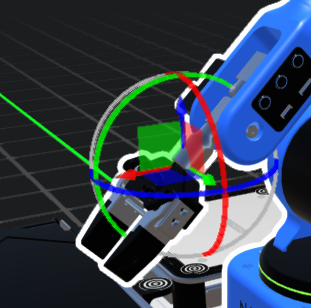
Grab and hold the gizmo to move the robot on the selected axe. If you select and single axe you will be able to make a linear movement on that axe only. If you select a plan you can displace on the XY plan
Quick move on Top of objects :
You can move the robot on top of an object by double-clicking on it. If the object is a vision workspace , it will put the robot in a suitable observation pose.
Guest Sessions
Guest sessions allow temporary users to access NiryoStudio without creating an account.
If the user who created the guest sessions has an active Simulation Module license, all guest sessions will automatically inherit the license and have full access to the simulation features (unlimited instructions).
If no license is activated on the main user account, guest sessions will be limited to the free version of the simulation (maximum of 10 executable instructions per program).
Find out here how to create guest sessions with an active license:
Your first program!
You can test a first program to:
- Pick & place a token with the custom gripper
- Pick it up using the vision
- Start and stop the conveyor belt
This full program can be run with the free version of the simulation.