Presenter's guideline - WS2 : Conveyor & Sensor Integration
🎯Expand the line by adding motion control and logic. Participants will integrate the conveyor and IR sensor so the robot can move objects automatically and react to sensor input.
⏱️2 hours
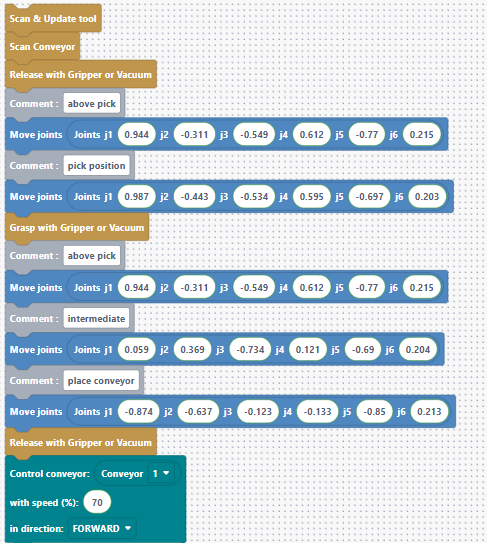
Step 6: Start the Conveyor in Blockly
Action:
-
Show the conveyor control blocks in Blockly.
-
Add a block to start the conveyor at the desired speed and direction.
-
Add a Scan & Update Tool and Scan Conveyor.
-
Add the Release block at the very top of the program.
Speaker notes:
“Here are the blocks that control the conveyor. We can set its speed and choose either forward or backward movement. For our task, we’ll set the conveyor to forward (or backward, depending on your setup) and use a moderate speed.”
“Let’s add this block right after we place the object on the conveyor.”
“To make sure the robot detects all the connected tools, like grippers and conveyors, we should always add the Scan & Update Tool and the Scan Conveyor blocks at the very beginning of the program.”
We didn’t do it in the first example because we performed a manual scan by pressing the Custom button to open the gripper, but it’s always better to add the block.
“ I also add a Release , like the previous pick and place -- this makes sure the gripper is open before we begin, preventing any surprises”