


Control of the Niryo Ned2 robot via an Allen Bradley PLC and CCW (I/O Adapter)
Tutorial
Electrical diagram:
In this first phase of the tutorial, we will see how to connect the I/O Adapter to both the Allen-Bradley PLC and the Ned2 robot. For this, a 24V power supply is required to power the I/O Adapter. To power the PLC output channels, bridge the PLC’s +24V terminal to the common output supply terminal (often labeled as L+ to 1L or +V/+24V depending on your PLC model). Here are the connections to follow:
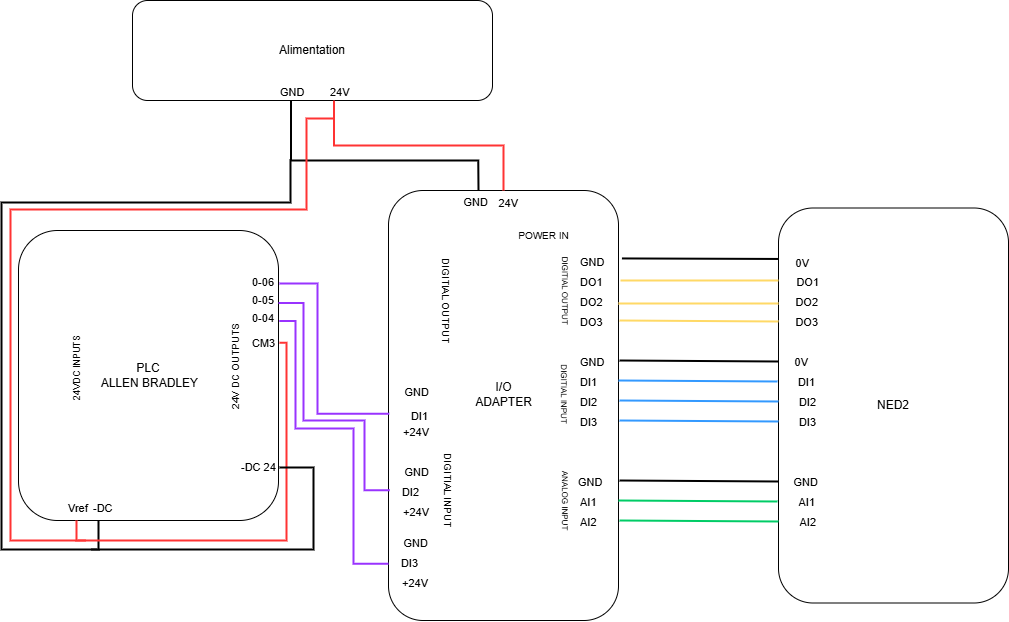
Interface configuration in Connected Components WorkBench
Download Connected Components WorkBench (CCW)
Use this link to access the latest version of Connected Components Workbench (CCW).
To download the software, you must create a Rockwell Automation account and fully complete your profile (including your company name and residing location).
Important: Location verification requests can take 24 to 48 hours to be approved before file downloads are granted. Complete this step ahead of time.

When prompted on the Rockwell download page, select only the following components to minimize file size and installation time:
-
Connected Components Workbench Standard Edition (Main software)
-
CCW Patch (Recommended for system stability)
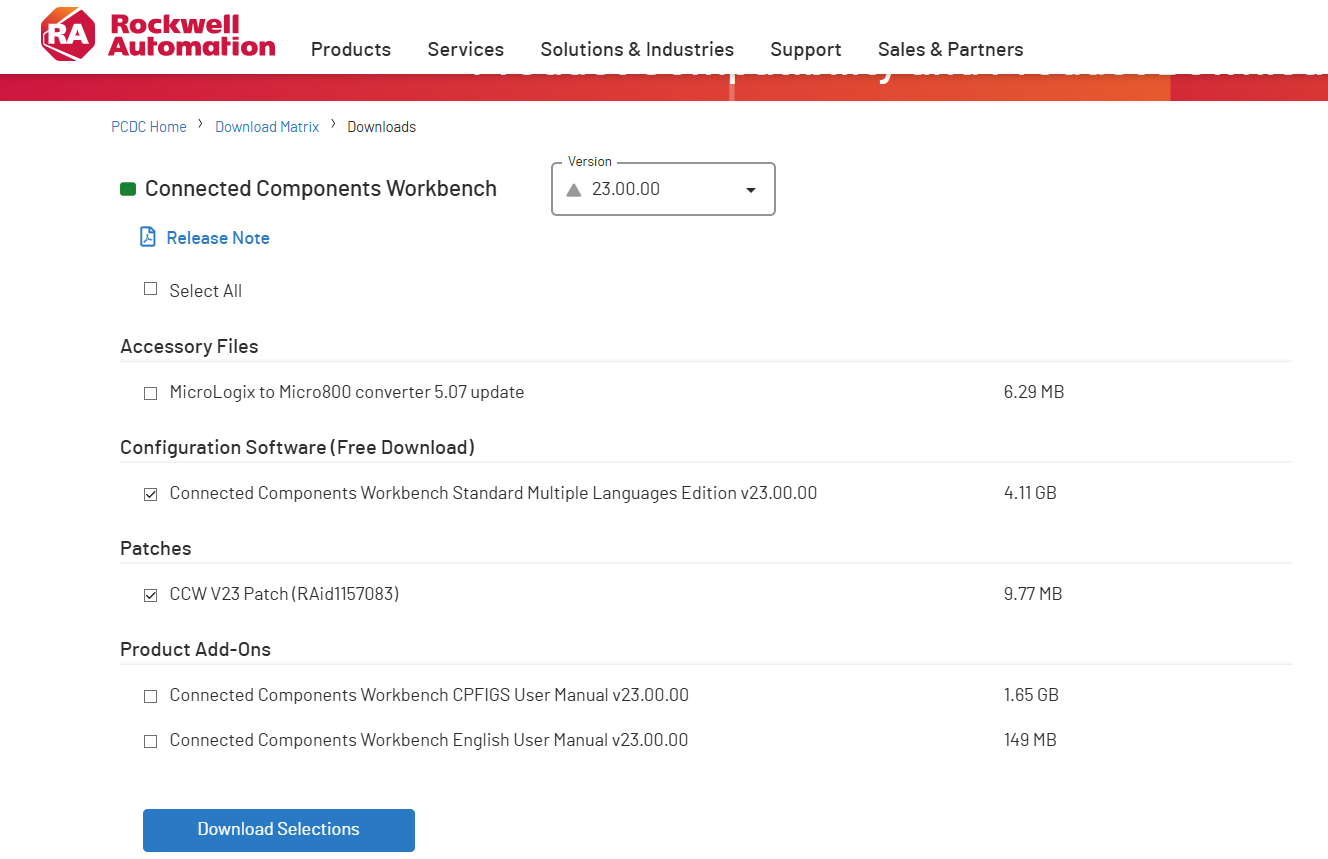
You can follow this video tutorial if you get stuck, and make sure to select the latest available version. After downloading and installing the software, we will complete a few initial setup steps before we start programming the PLC.
Network Configuration Setup
Before connecting to the PLC and the Ned2 robot, you must configure your computer’s network adapter with a static IP address on the same subnet (e.g., 192.168.1.100 with Subnet Mask 255.255.255.0). This ensures direct communication with both devices without IP conflicts.
Leave the Gateway and DNS fields empty, as a local industrial setup does not require internet routing.
Step-by-Step OS Setup
Windows (10 / 11)
-
Open the Start Menu (
Win) or pressWin + R, typencpa.cpl, and press Enter to open Network Connections. -
Right-click your Ethernet adapter and select Properties.
-
Double-click Internet Protocol Version 4 (TCP/IPv4).
-
Select Use the following IP address.
-
Enter the network parameters:
-
IP address:
192.168.1.100 -
Subnet mask:
255.255.255.0 -
Default gateway / DNS: Leave blank.
-
-
Click OK on both dialog boxes to apply the settings.
Linux (Ubuntu / Debian - GUI)
-
Open Settings and navigate to Network.
-
Click the gear icon ⚙️ next to your active Ethernet interface.
-
Go to the IPv4 tab and select Manual.
-
Enter the network parameters under Addresses:
-
Address:
192.168.1.100 -
Netmask:
255.255.255.0 -
Gateway: Leave blank.
-
-
Click Apply and restart the network connection to toggle changes.
macOS
-
Open System Settings and select Network from the sidebar.
-
Click on your active Ethernet adapter.
-
Click Details... and go to the TCP/IP tab.
-
Set Configure IPv4 to Manually.
-
Enter the network parameters:
-
IP Address:
192.168.1.100 -
Subnet Mask:
255.255.255.0 -
Router: Leave blank.
-
-
Click OK, then click Apply.
Assigning the PLC IP Address
Next, we need to assign an IP address to the PLC. To do this, download the BOOTP-DHCP Commissioning Tool (available here). Connect the PLC to your computer using an Ethernet cable, then open the software. Select your network interface and click OK.
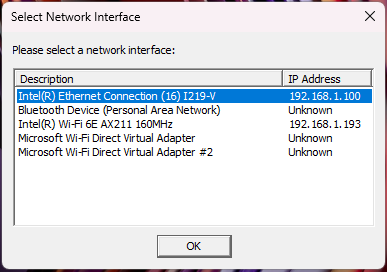
Wait a few seconds for the PLC to appear on the Discovery History list. Once it is displayed, right-click on the device's Ethernet Address (MAC) and select Add Relation.
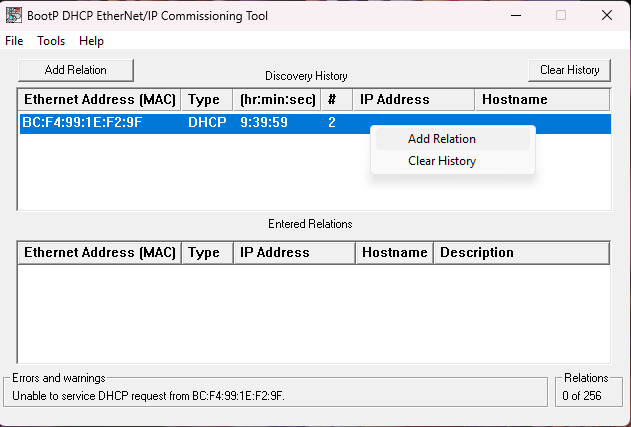
Choose an IP address on the same network as the PC. Then click OK.
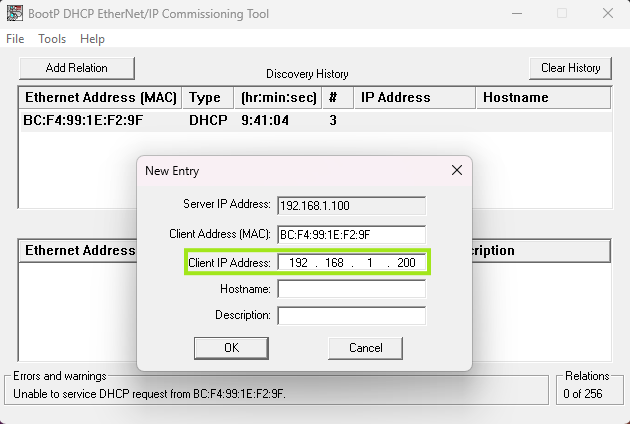
Select the relation in the Entered Relations list and click Disable BOOTP/DHCP. This ensures that the PLC retains the same IP address every time it reboots, instead of having a new one reassigned by the network.
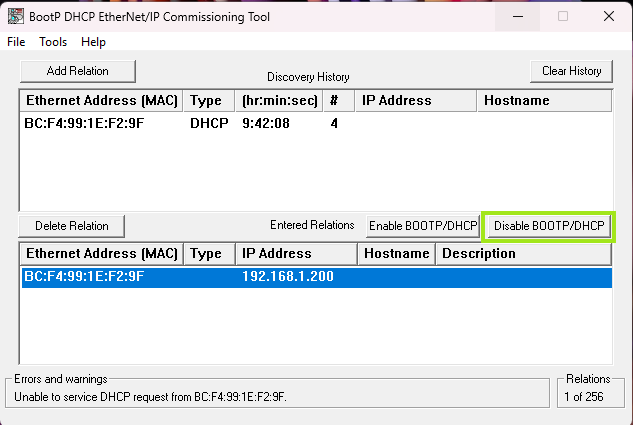
If successful, close the BOOTP-DHCP tool. If an error appears, leave BOOTP enabled for now; we will permanently assign the static IP address inside Connected Components Workbench (CCW).
CCW Setup: Project Creation & PLC IP Configuration
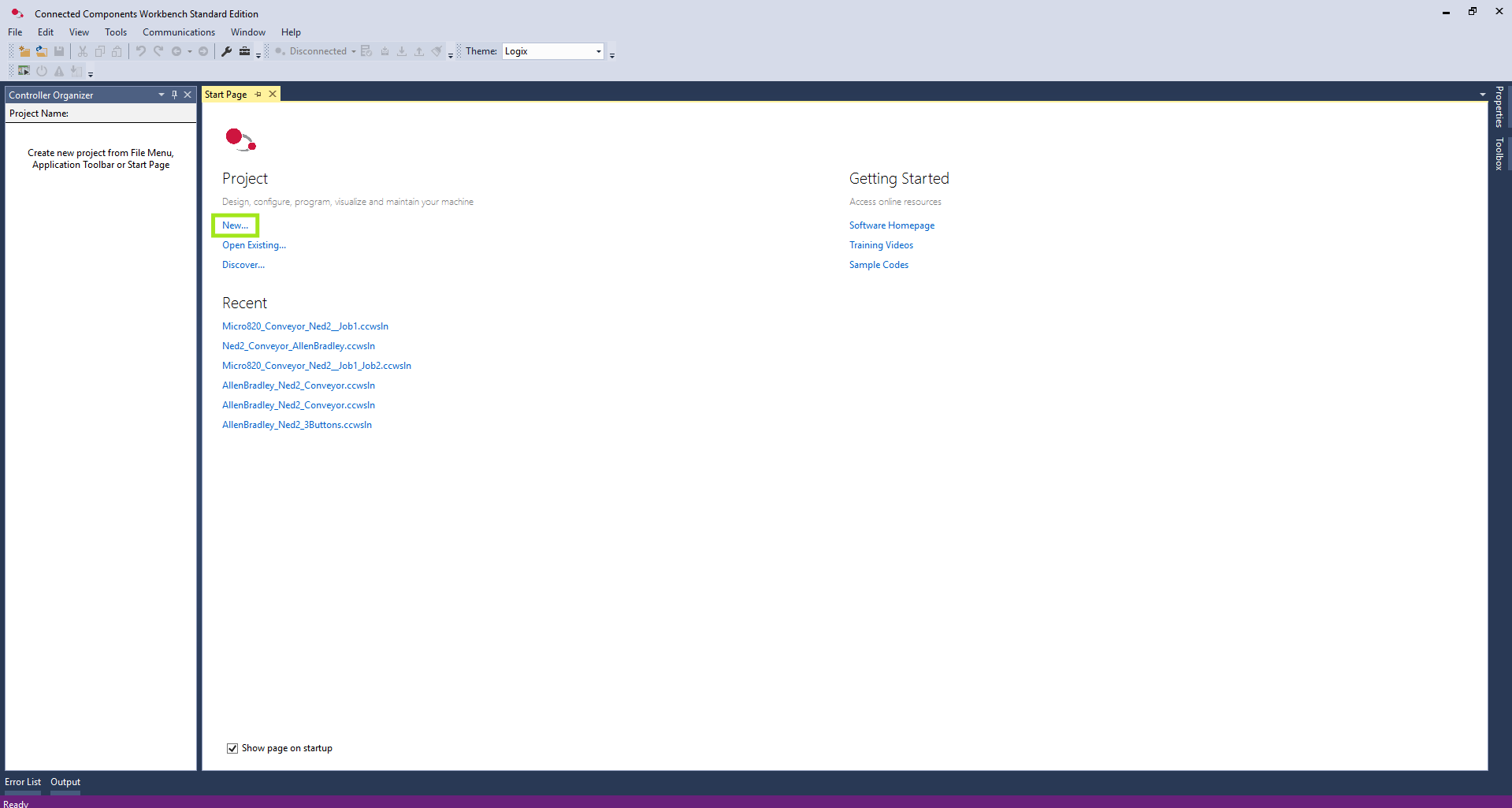
Now, open the CCW software. Create a new project.
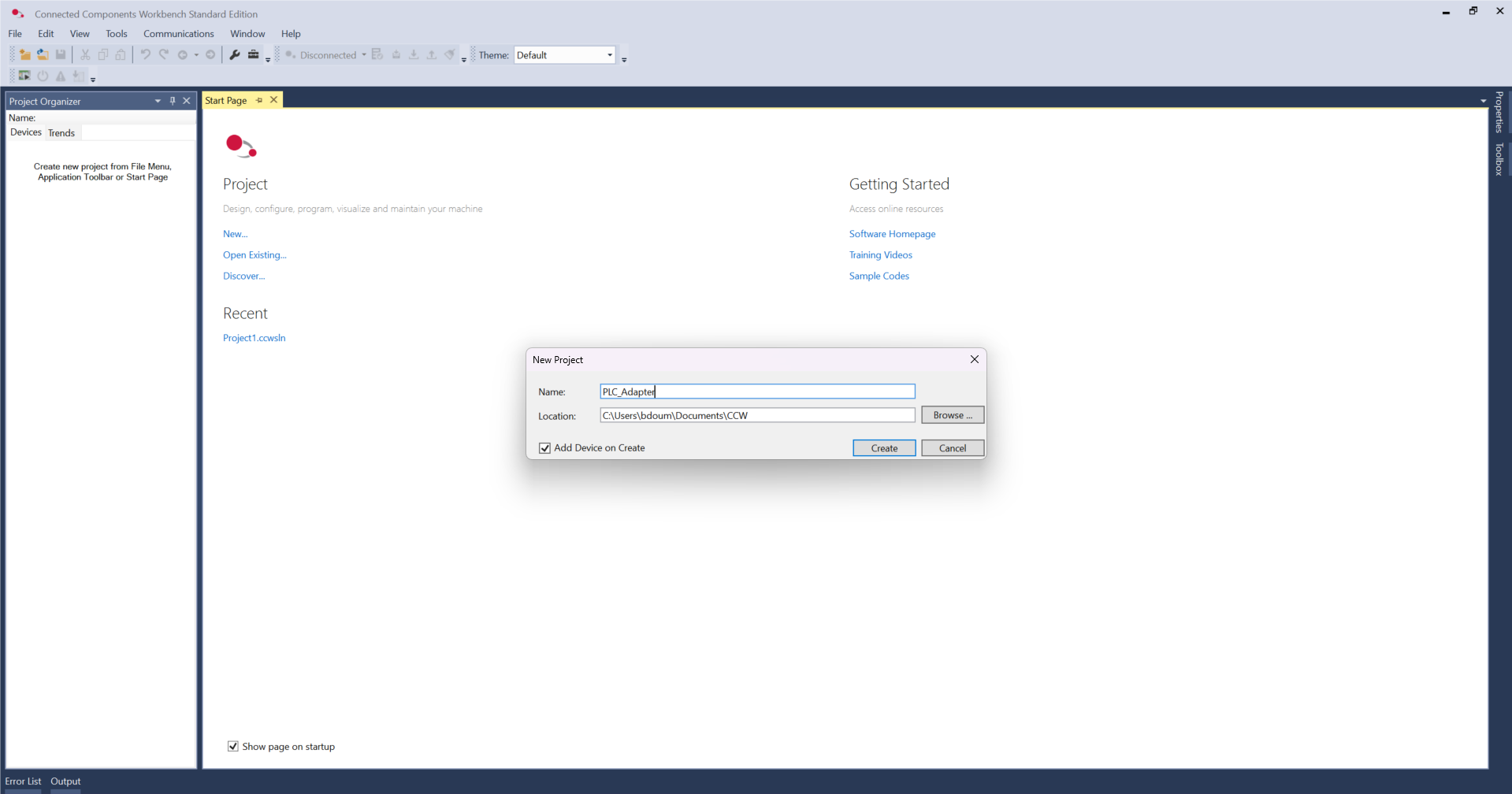
Define a name and click Create.
Wait a few seconds and a pop-up window will appear.
Expand the Controllers folder, select the reference of your PLC.
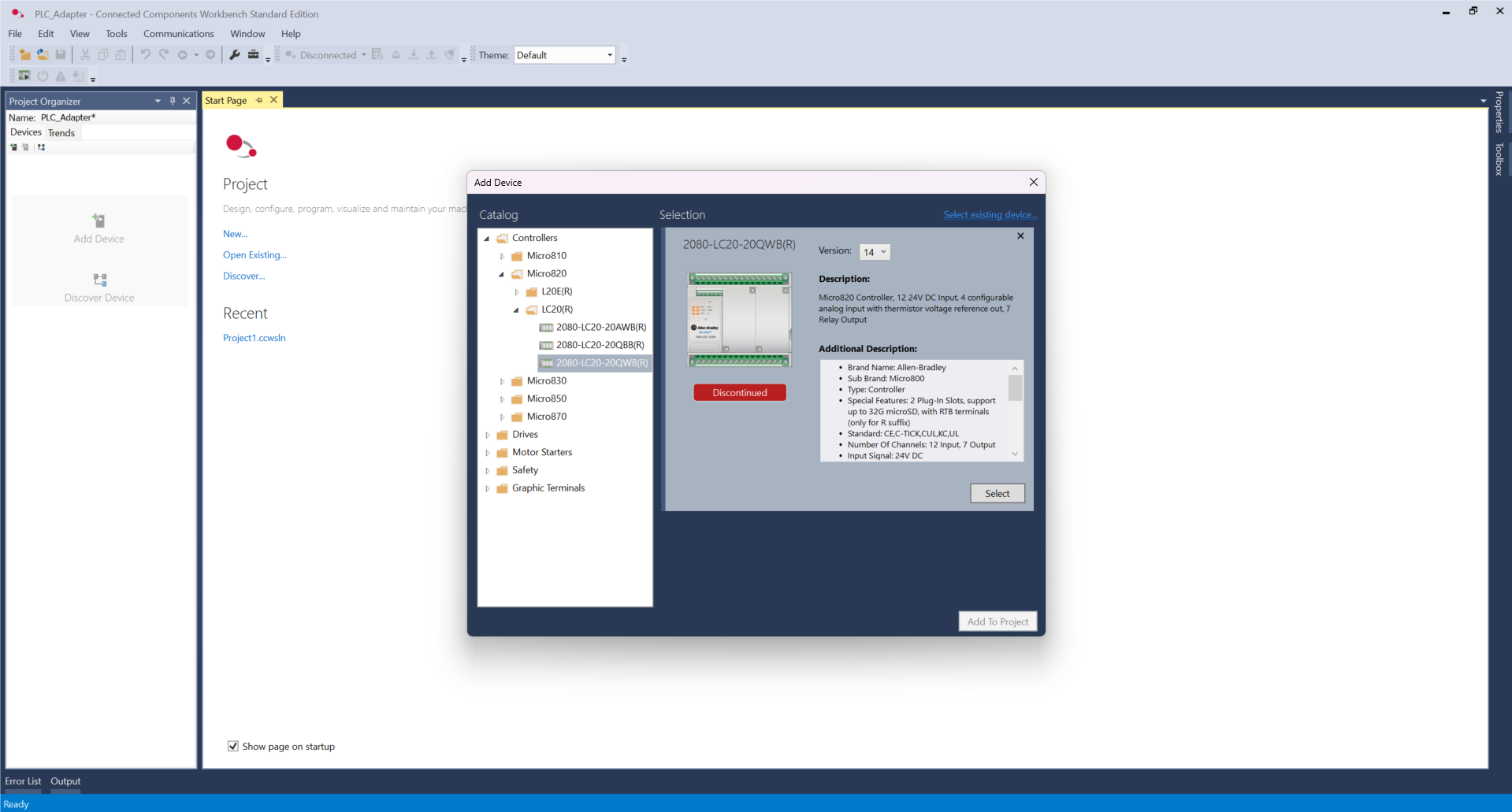
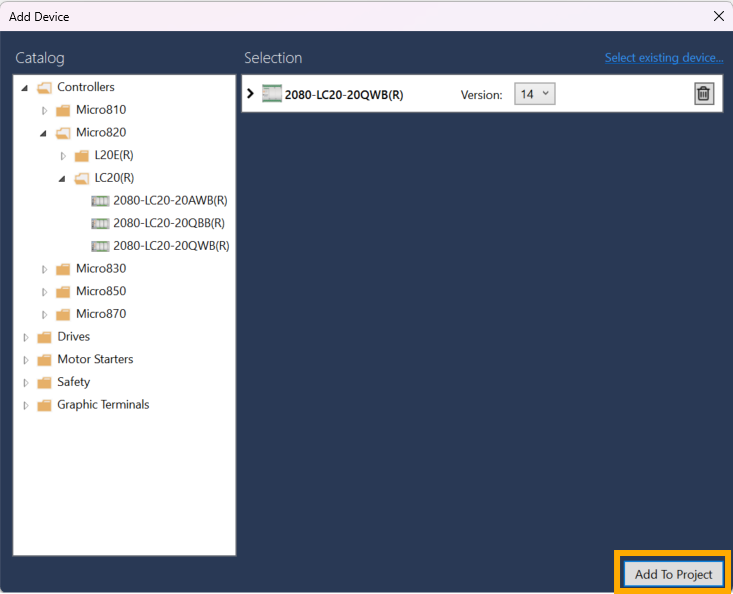
Click Select and Add To Project.
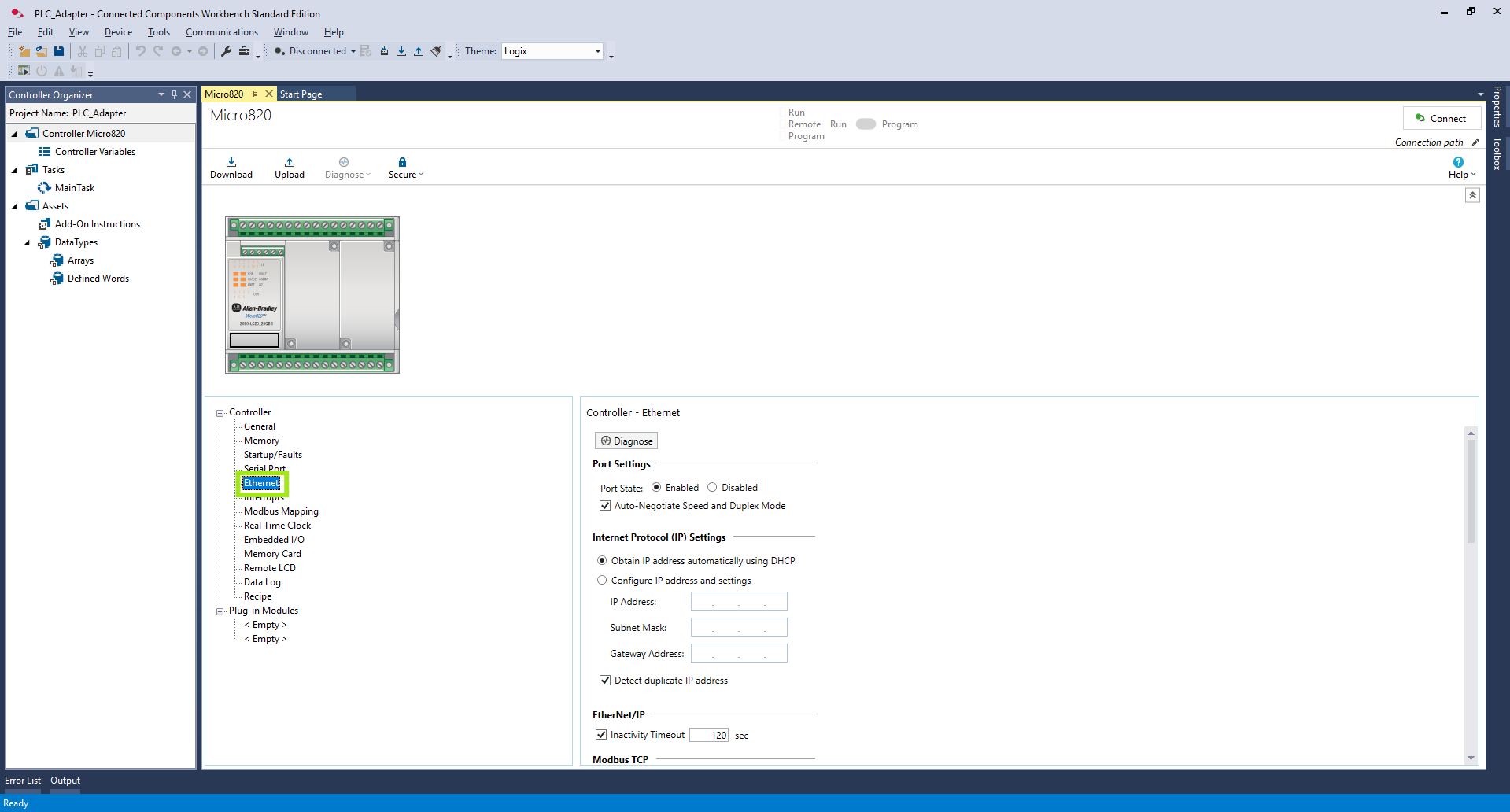
In the main device configuration tab (Micro820) expand the Ethernet section under the controller properties list.
Select Configure IP address and settings. This action automatically disables BOOTP and DHCP on the hardware interface.
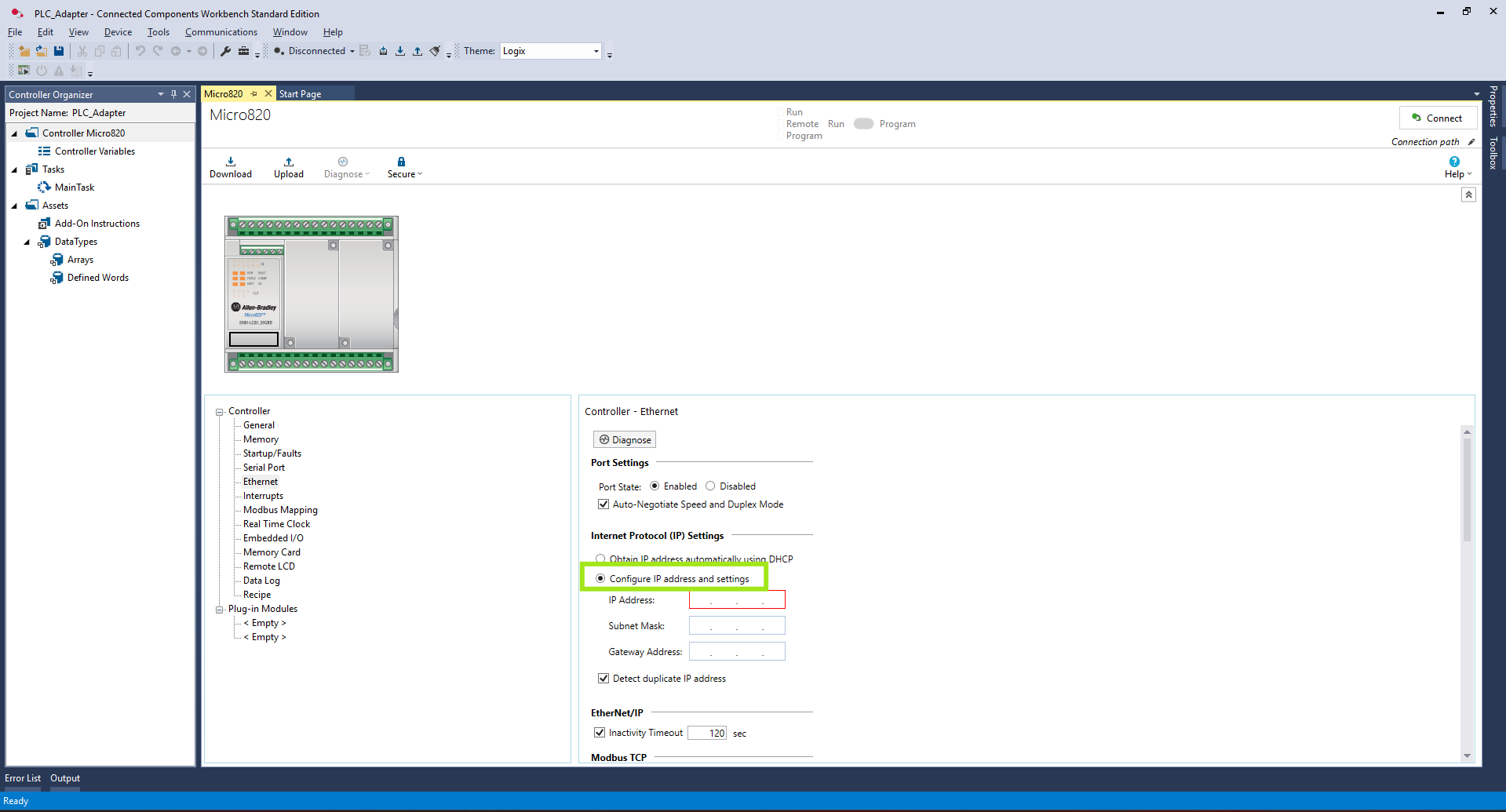
Enter your desired network settings into the fields:
-
IP Address:
192.168.1.200 -
Subnet Mask:
255.255.255.0 -
Gateway / DNS: Leave blank (for local industrial network setups).
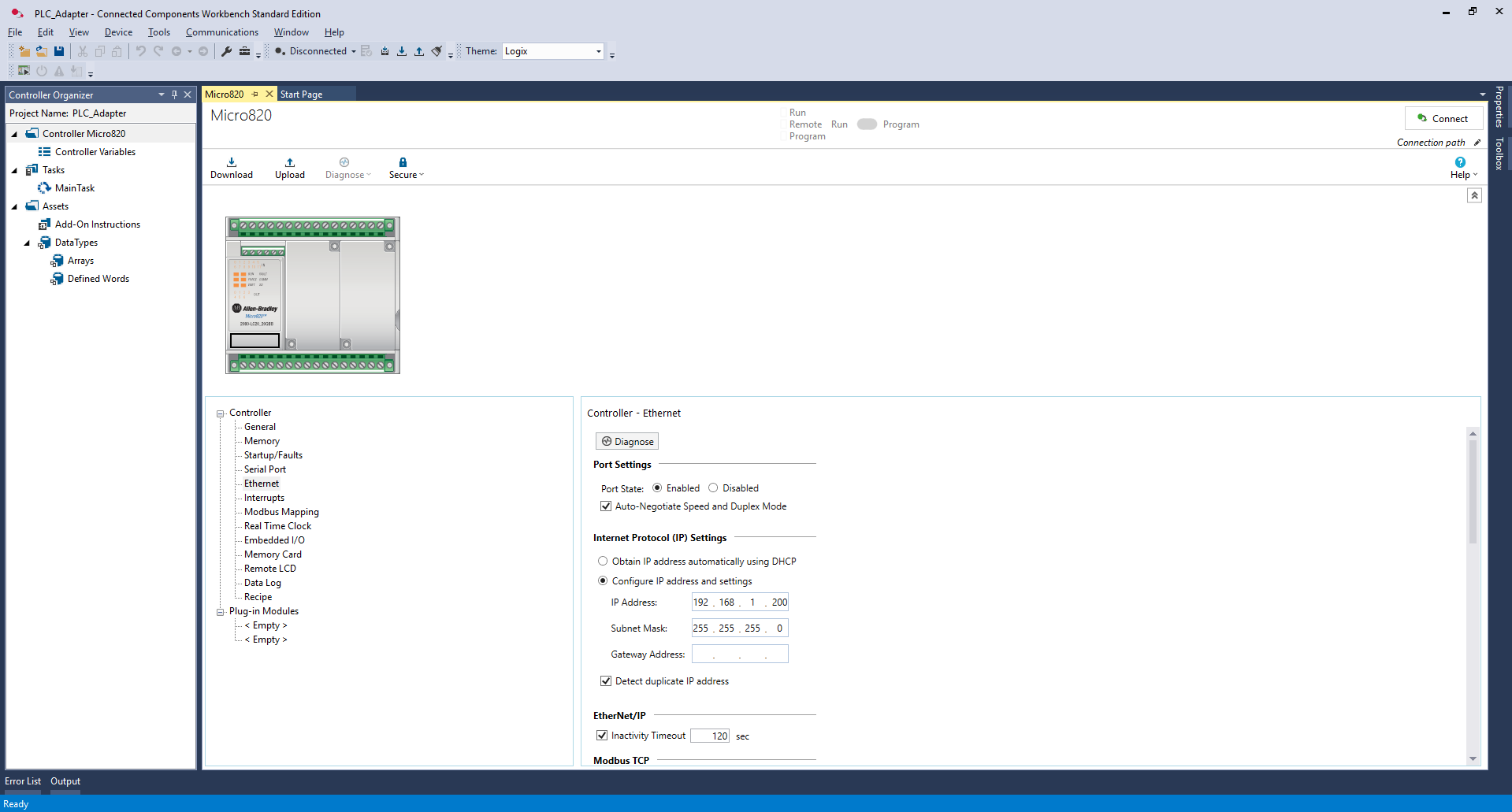
Next, under the View menu, open the Project Organizer.
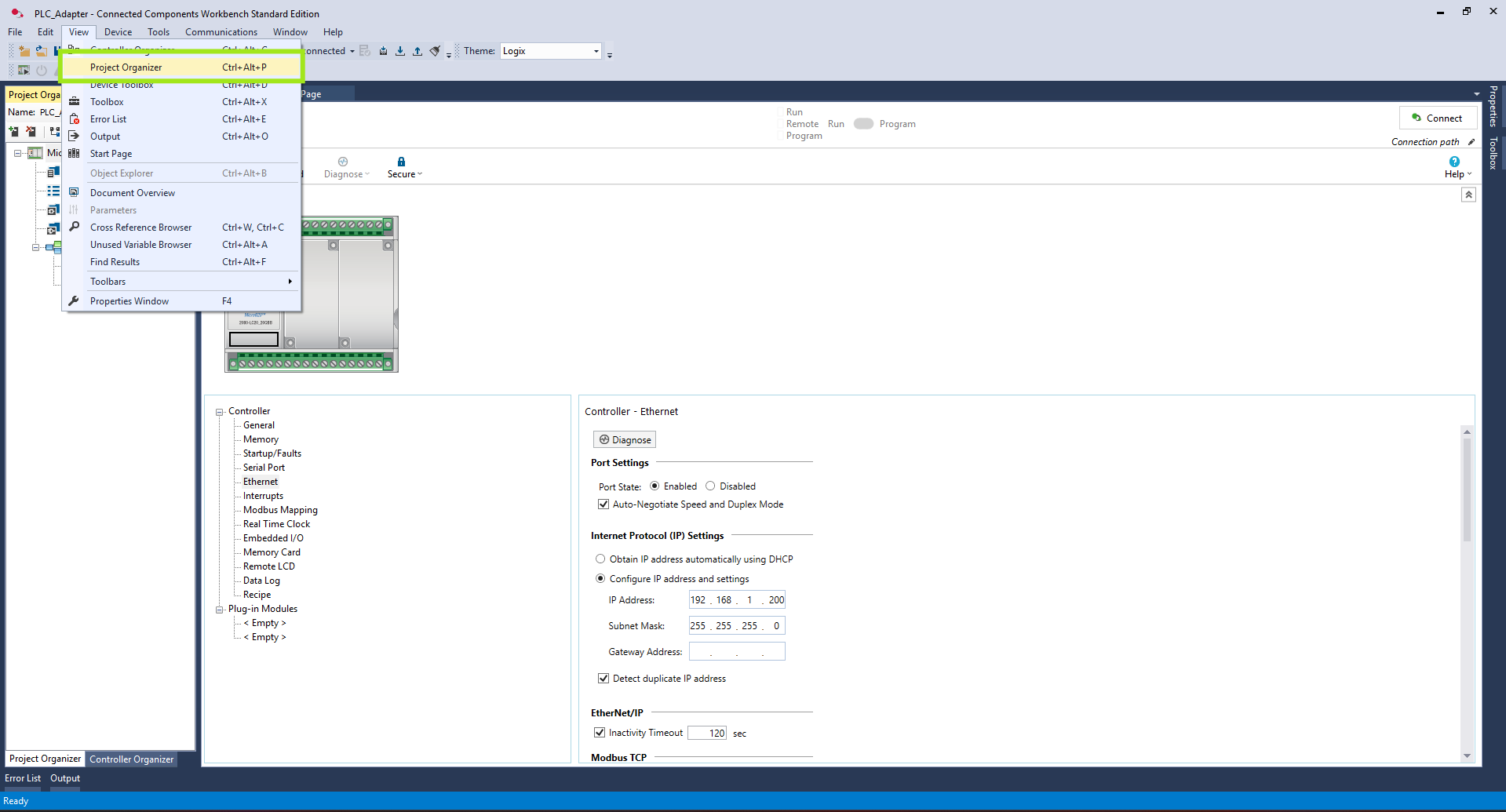
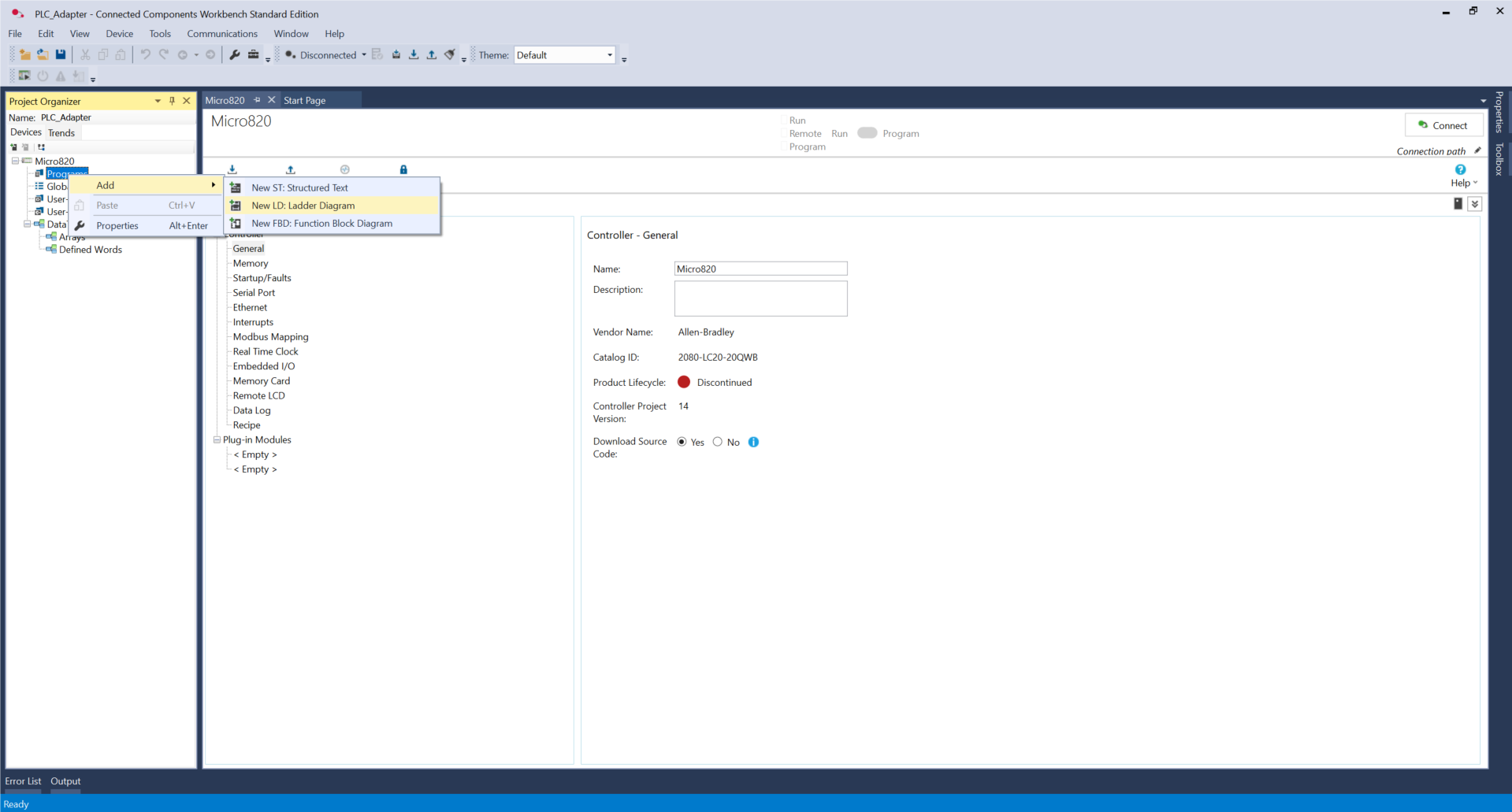
Then, right-click on Programs -> Add -> New LD: Ladder Diagram. Rename the newly created program Main.
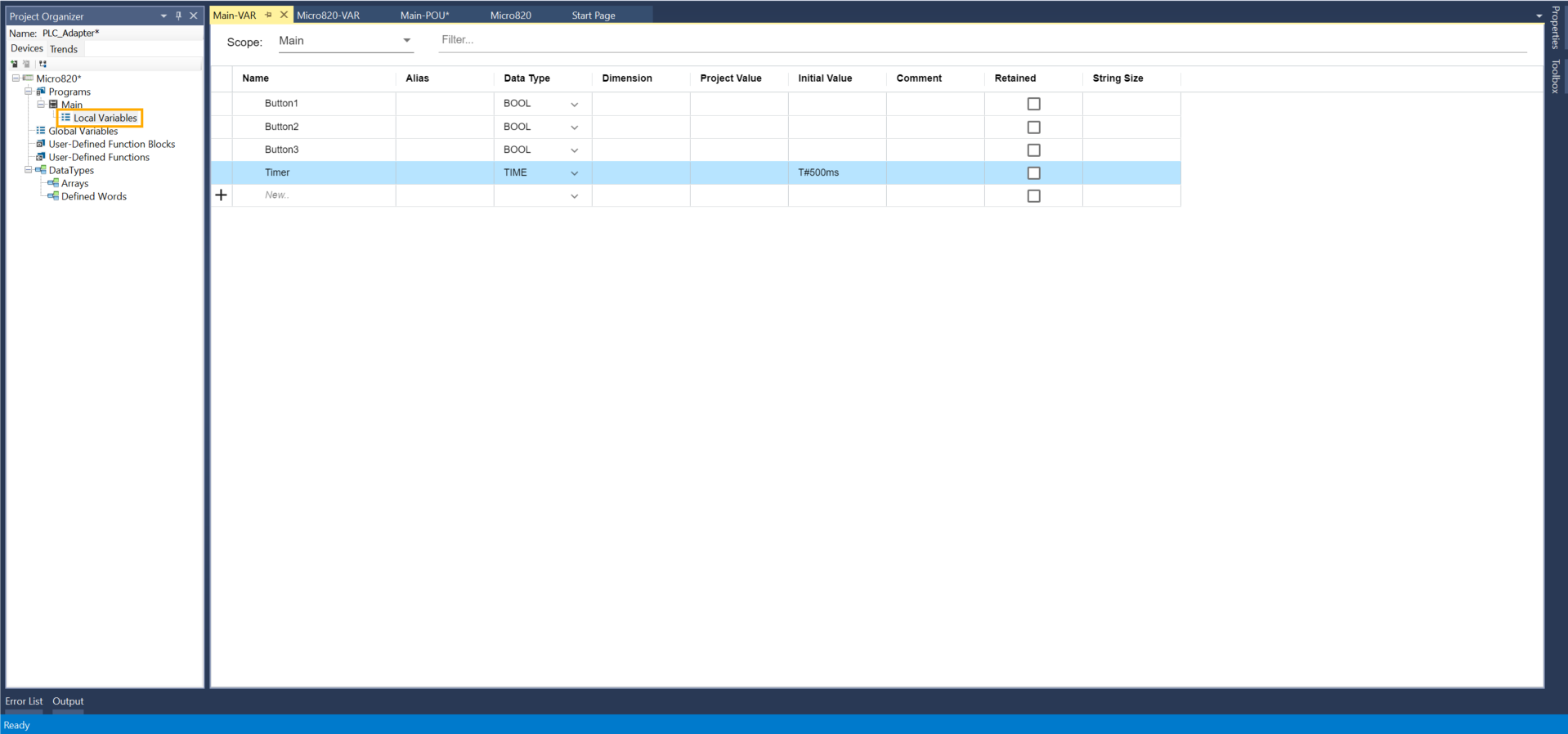
In this step, we will create three simulated buttons to send commands to the I/O adapter and the robot. These variables will function just like physical push buttons.
-
Double-click Local Variables under your Main program.
-
Create three BOOL variables:
Button1,Button2, andButton3. -
Create a fourth variable named
Timerwith the TIME data type, and set its Initial Value toT#500ms. This defines the pulse duration for the button signals.
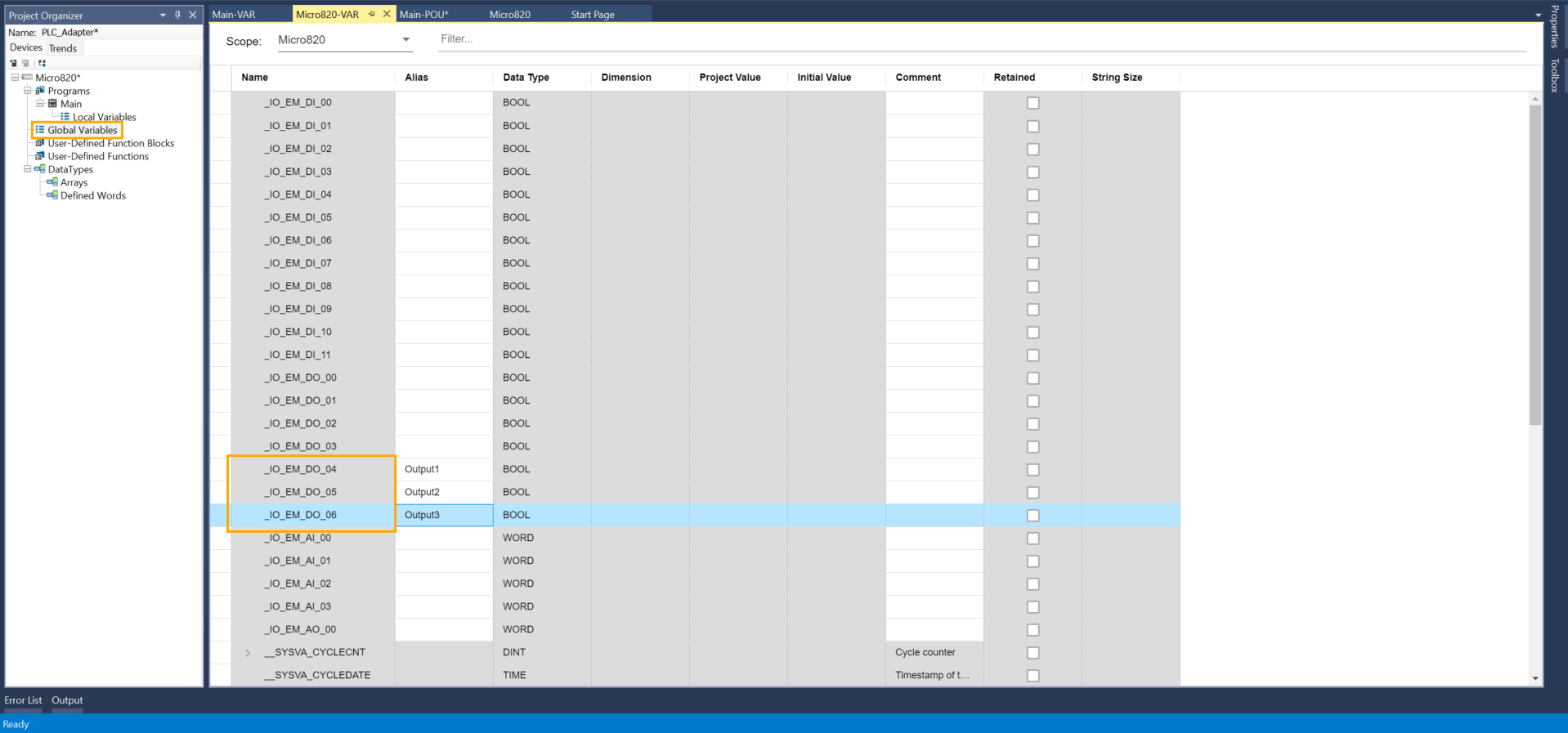
Open the Global Variables table and locate three available physical output channels (e.g., _IO_EM_DO_04, _IO_EM_DO_05, _IO_EM_DO_06). In the Alias column for these outputs, assign the names Output1, Output2, and Output3.
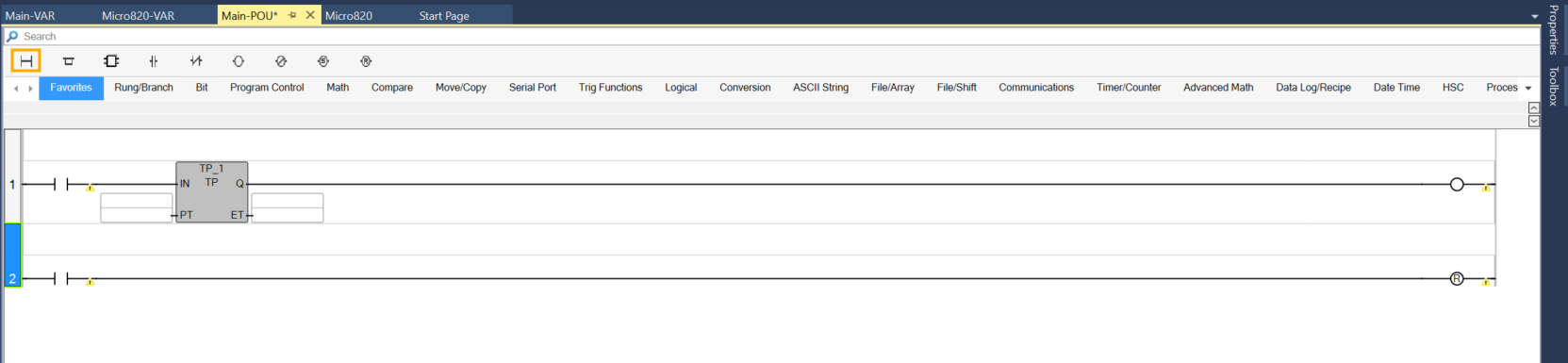
Double-click Main to open the ladder logic editor.
In the first Rung, add a Direct Contact, a TP (Pulse Timer) timer block, and a Direct Coil.

Create a new Rung by clicking the first icon on the left of the ladder toolbar. On this new rung, add a Direct contact and Reset coil.
Double-click the Direct Contact on Rung 1. In the Variable Selector window, set the Scope dropdown to Main, then select Button1
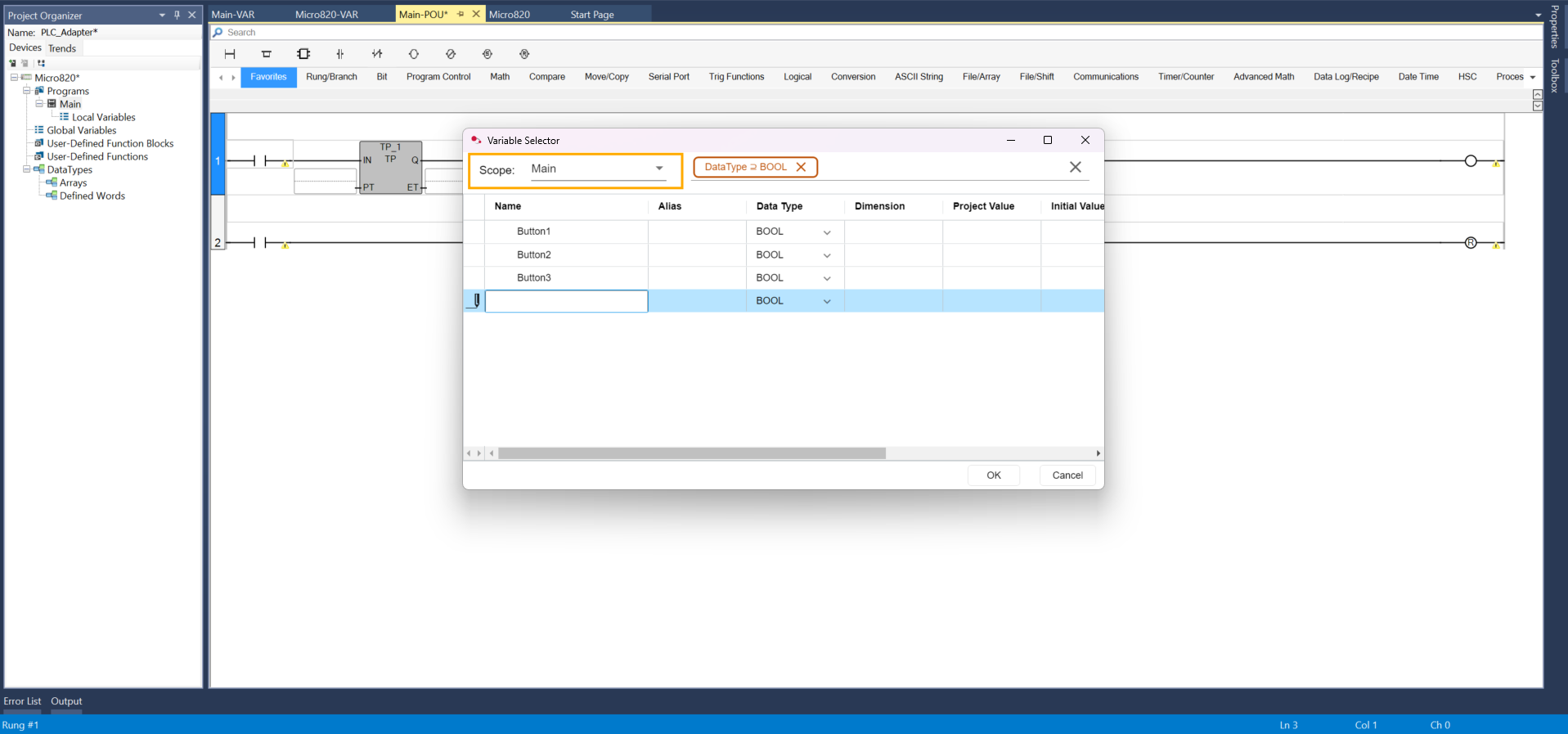
Double-click Button1 to assign it to the Direct Contact.

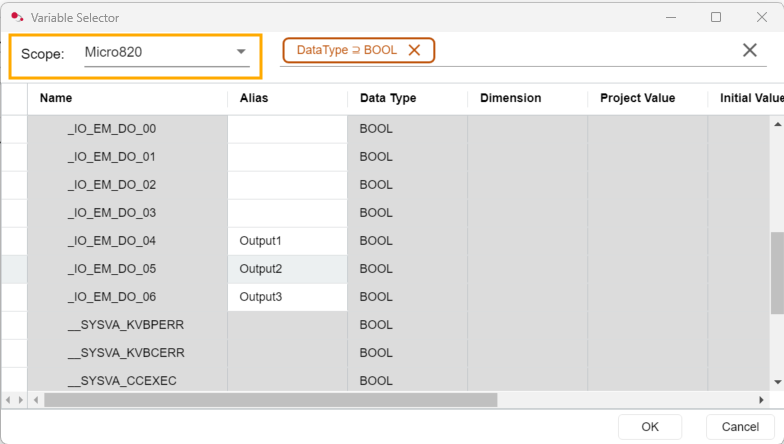
For the ouput, choose in the Scope field, the PLC model option. In our case, it is the Micro820.
For the Direct Coil, double-click the coil to open the variable selector. In the Scope dropdown, select your PLC model (Micro820) to access the global I/O tags, then choose Output1 (_IO_EM_DO_04).
Click on the entry field direcly net to the PT (Preset Time) pin in the TP timer block, assing the Timer variable to it.
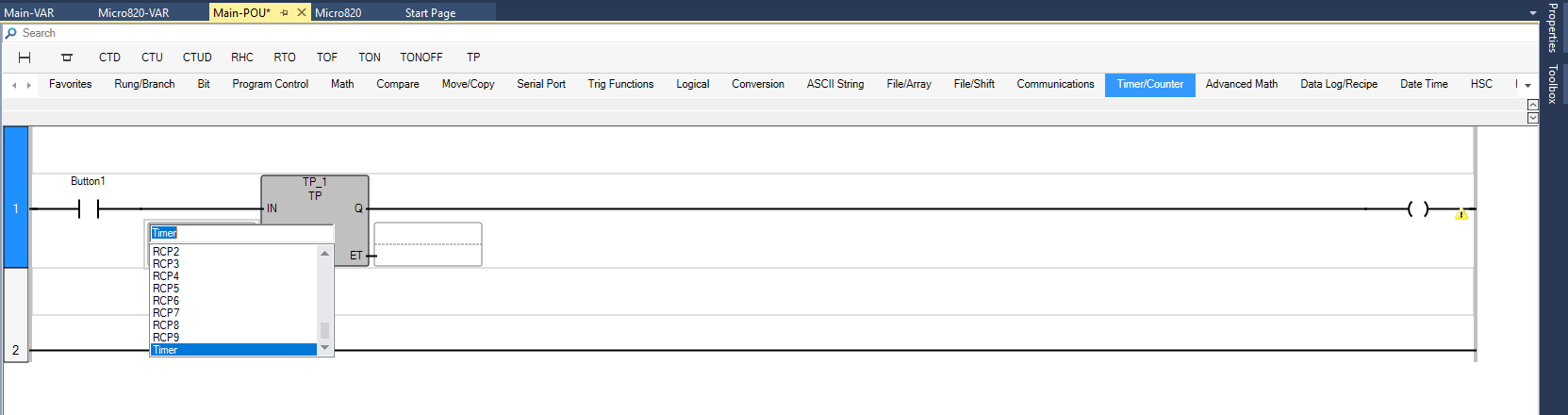
On the second rung's Direct Contact, select the variable TP_1.Q.
How the logic works: When Button1 is activated, the timer output (Q) and Output1 turn ON for 500 ms. Once the timer completes, the TP_1.Q contact closes to trigger the Reset Coil (R) on Button1, returning it to 0 and simulating the release of a physical push button.
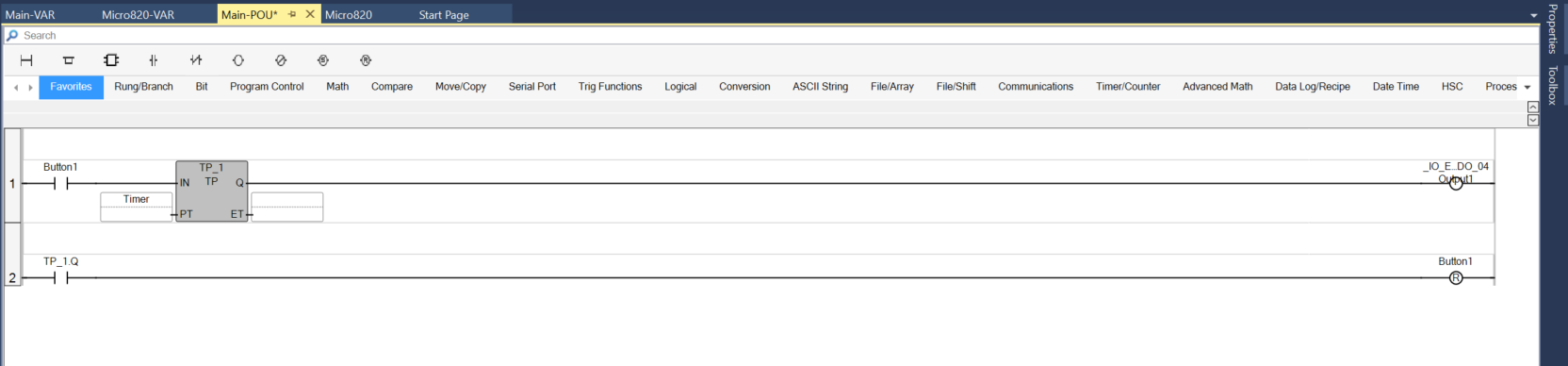
Duplicate this exact logic for Button2 (Rungs 3–4) and Button3 (Rungs 5–6), updating the corresponding timer instance names (TP_2, TP_3) and output aliases (Output2, Output3).
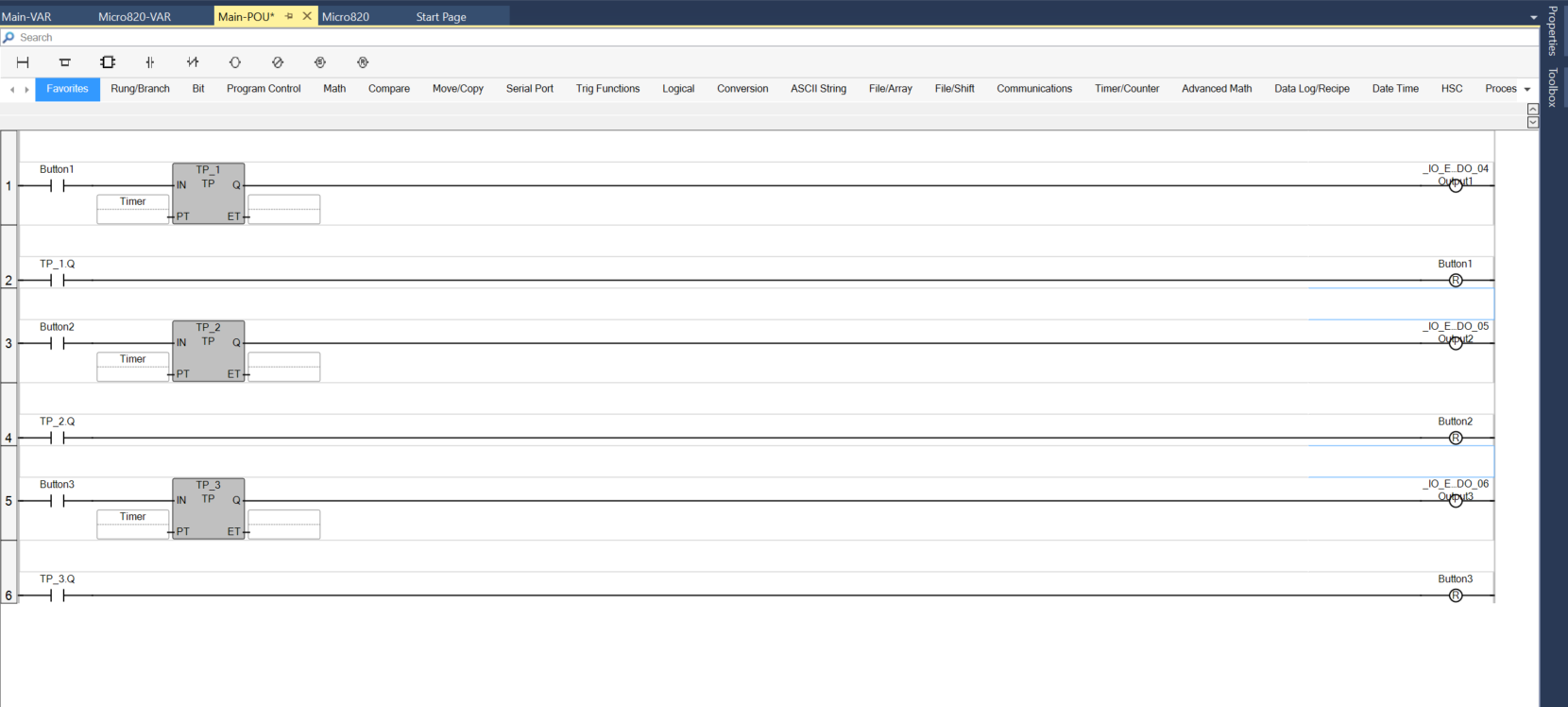
At the top of the window, click Connect in the toolbar to go online with the PLC.
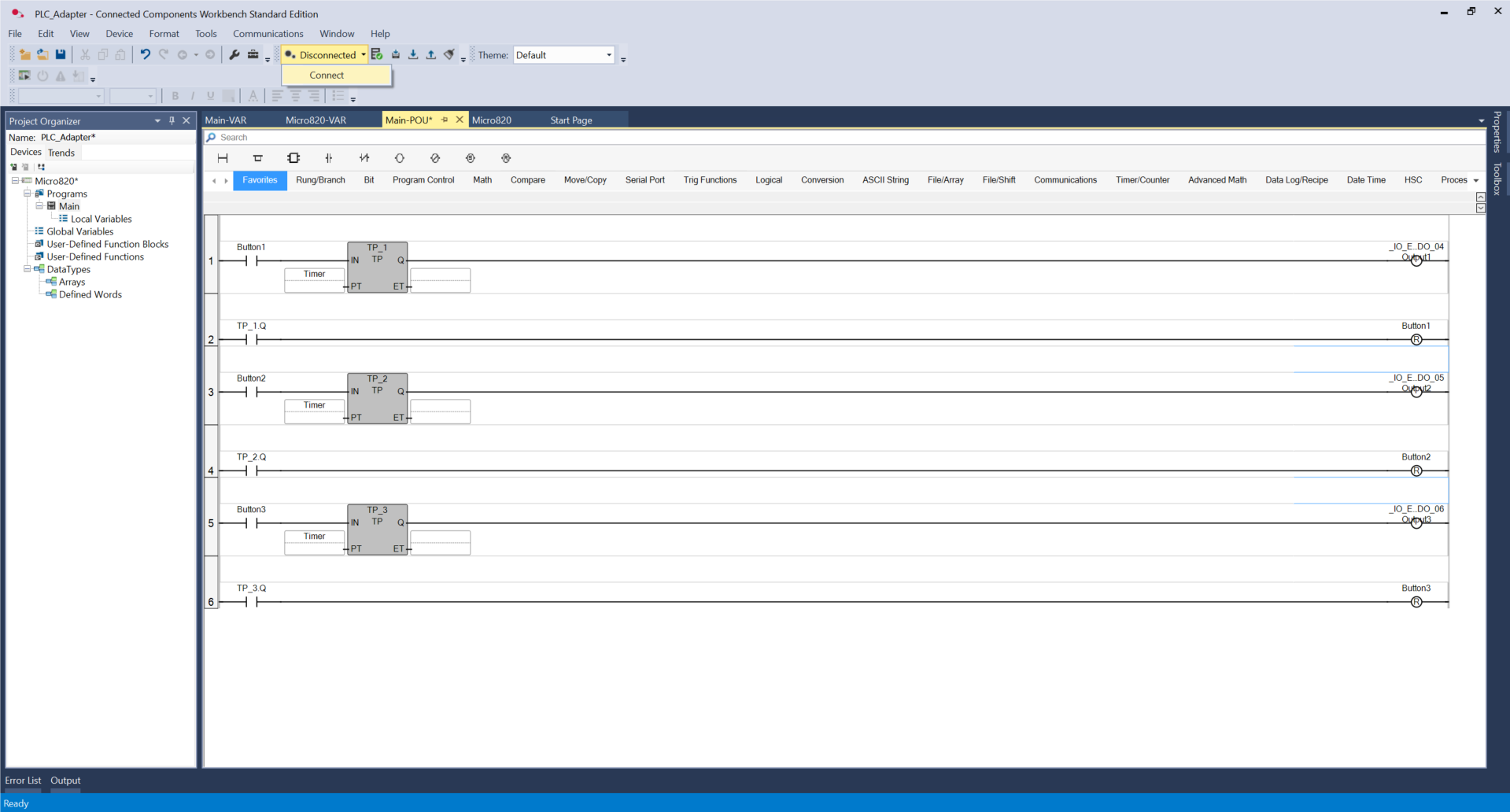
In the Connection Browser window, select your Micro820 controller from the list and click OK.
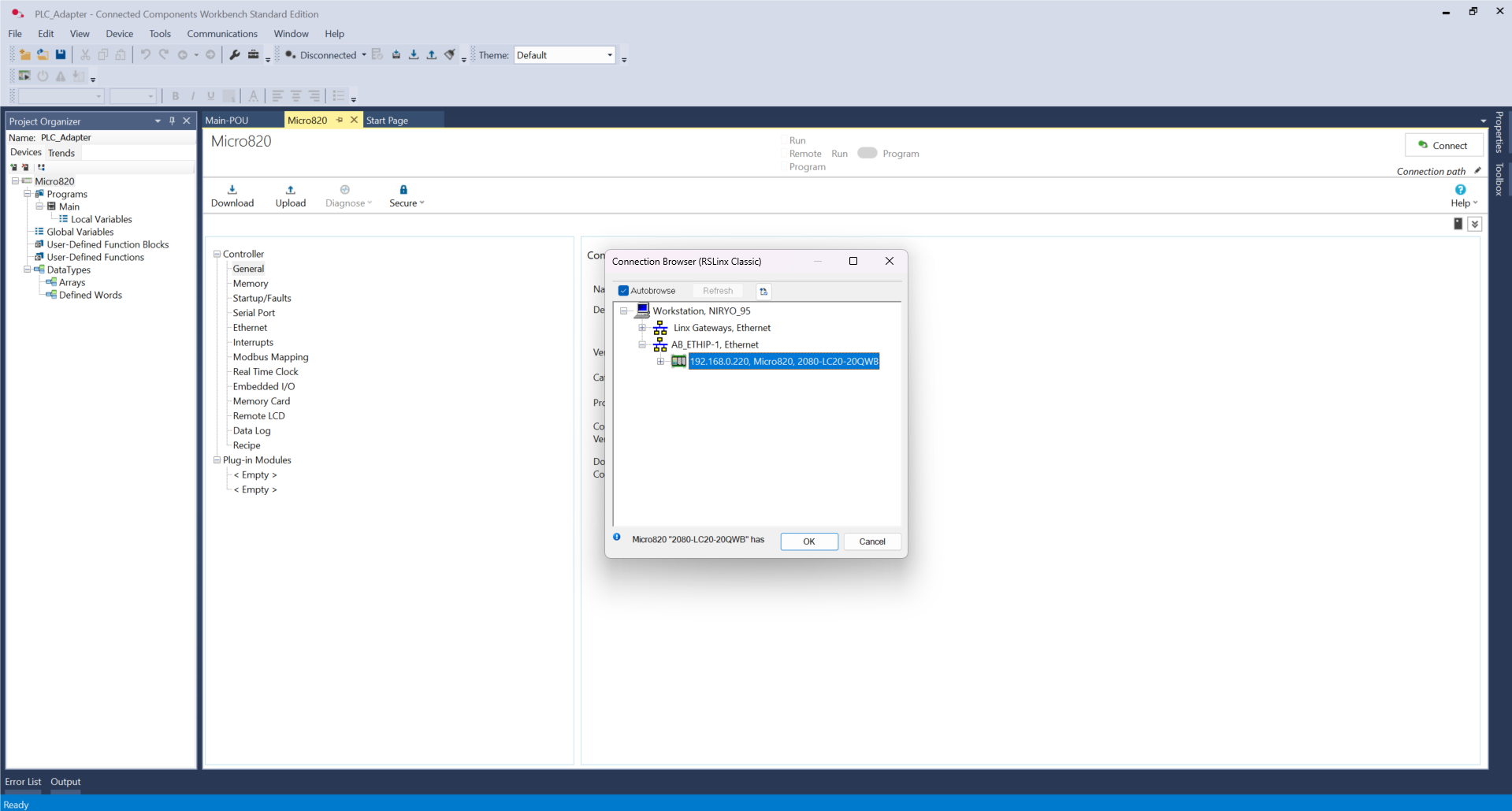
Click Download current project to the controller.
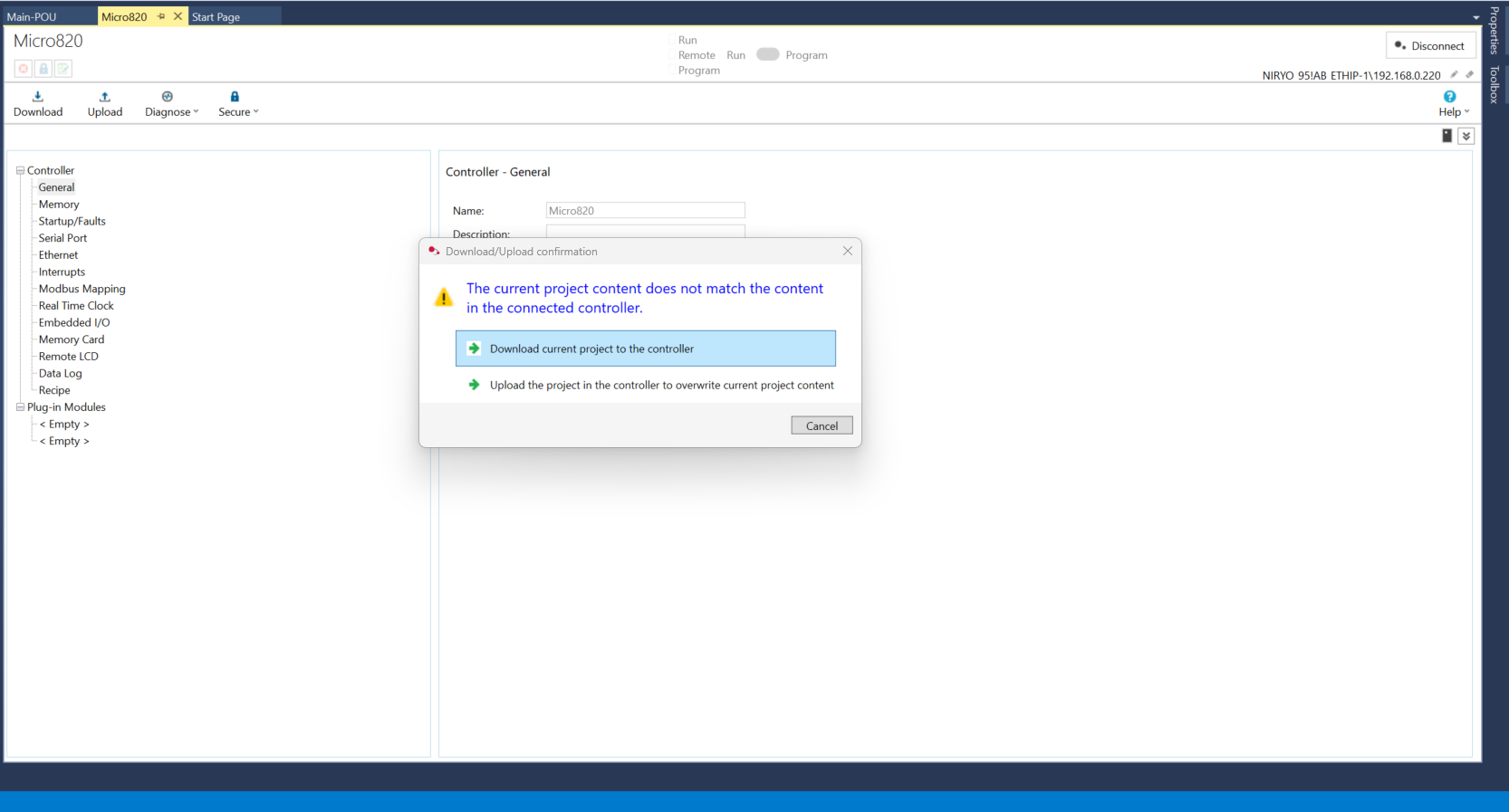
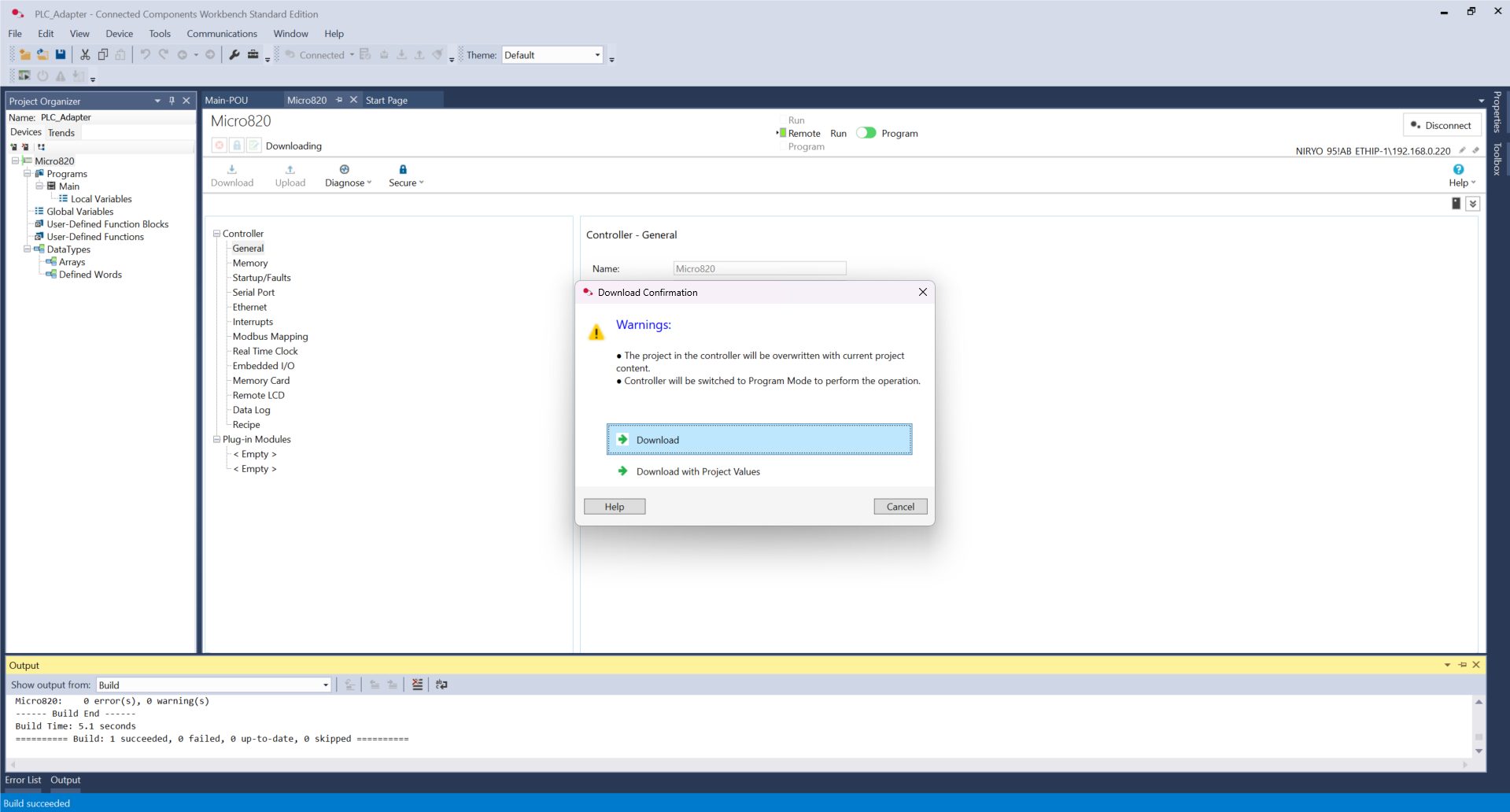
Click Download.
Click Yes.
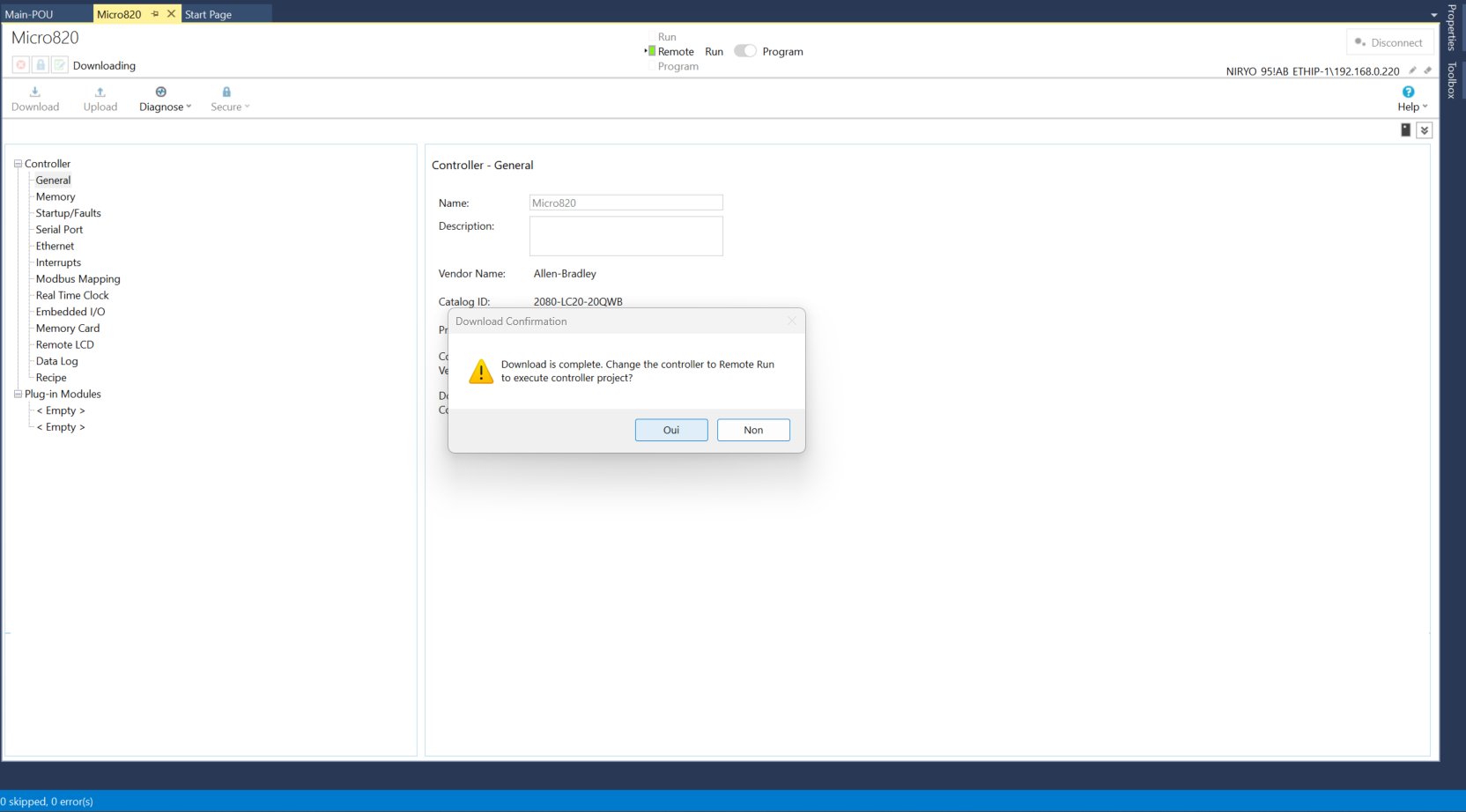
Click the toggle switch in the toolbar to change the controller mode from Program to Run, then click OK in the prompt to confirm.
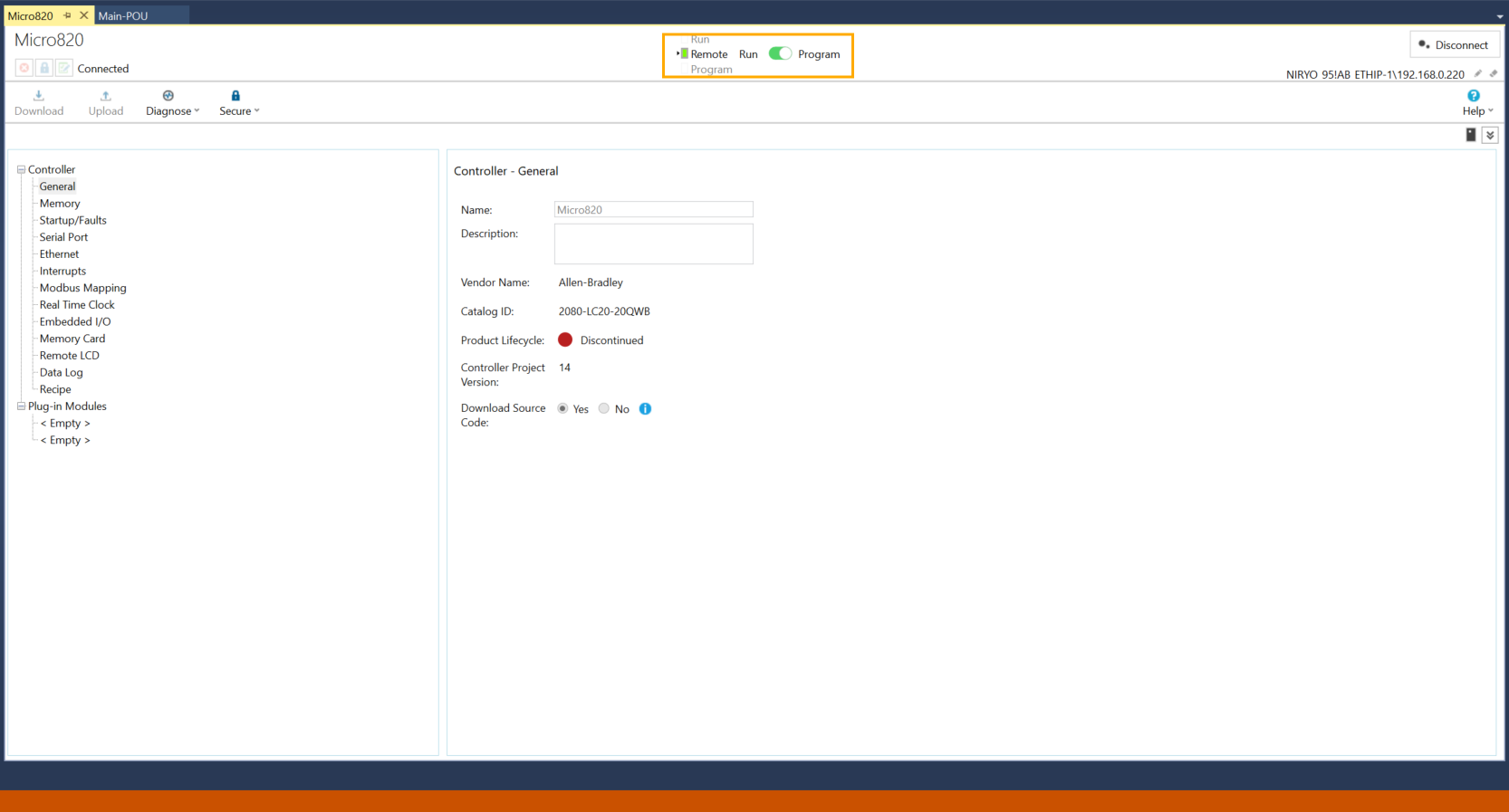
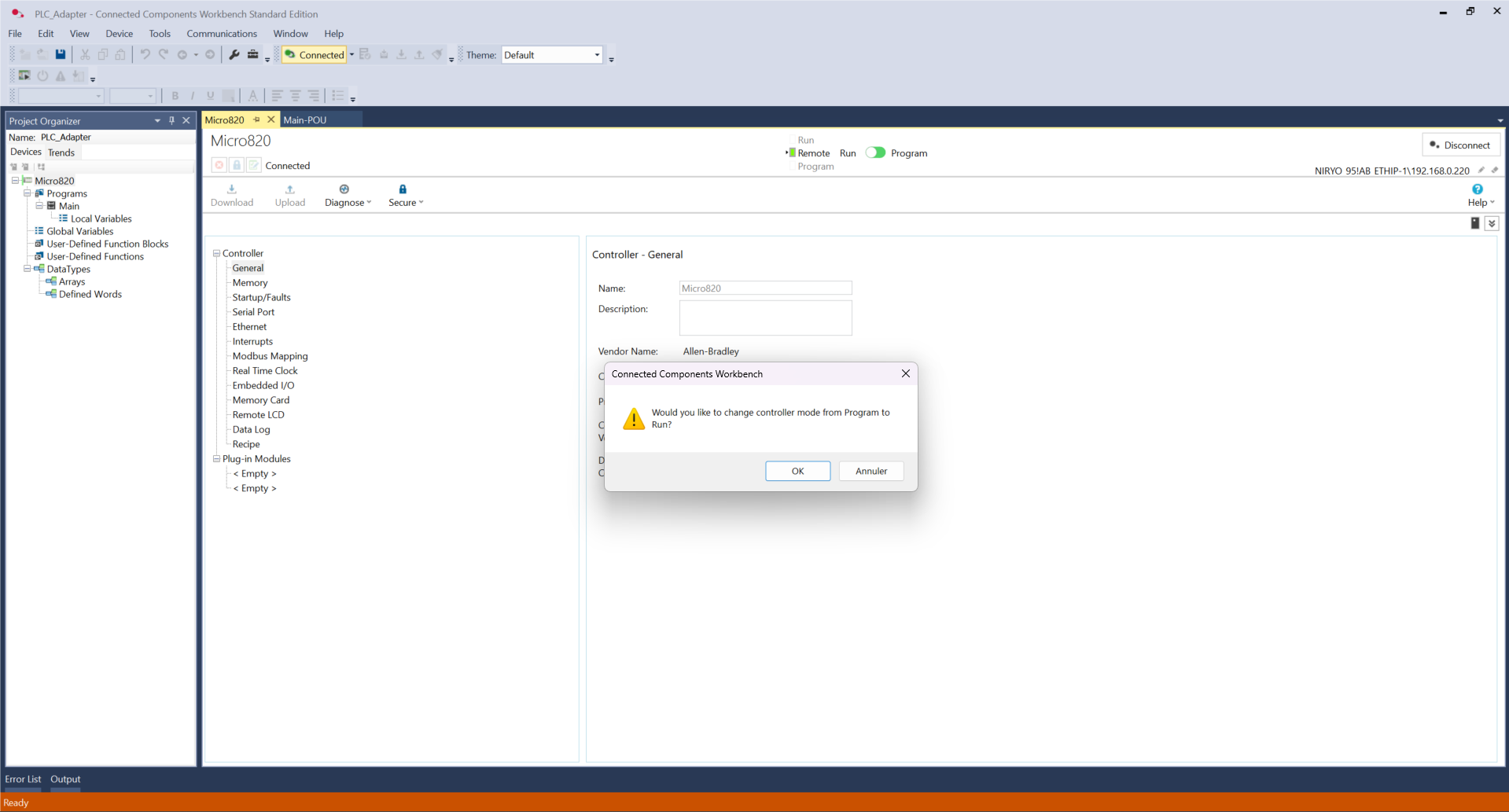
With the PLC configuration and ladder logic now complete, the Micro820 is ready to process signal commands. In the next section, we will integrate these simulated button triggers with the robot controller to execute automated actions.
Robot-side programming
This script allows the robot to be controlled directly by electrical signals sent by the PLC to its ports DI1, DI2, and DI3. In an IDE (Visual Studio), copy the code found here.
Here are some explanations to better understand its role.
1. Hardware Interaction
This code queries the physical state of the robot pins :
-
Reading signals: the robot.digital_read() function continuously monitors if a voltage is present on the inputs.
-
PinState.HIGH: the robot detects if a button is pressed or if the controller sends an "All or nothing" signal (24 V transformed to 5 V).
2. Role of Physical Commands
The logic is simplified into three direct actions triggered by each input:
-
DI1 (Input 1): starts the auto calibration procedure to reset the motors.
-
DI2 (Input 2): orders an immediate move to the HOME position.
-
DI3 (Input 3): triggers the Vision Pick & Place cycle.
3. Logic and Stability
-
Control loop: the program scans the inputs every 0.5 seconds (robot.wait(0.5)) to avoid saturating the processor while remaining responsive.
-
Priority: the if/elif structure ensures that only one action is processed at a time, thus preventing the robot from attempting to perform two contradictory movements simultaneously.
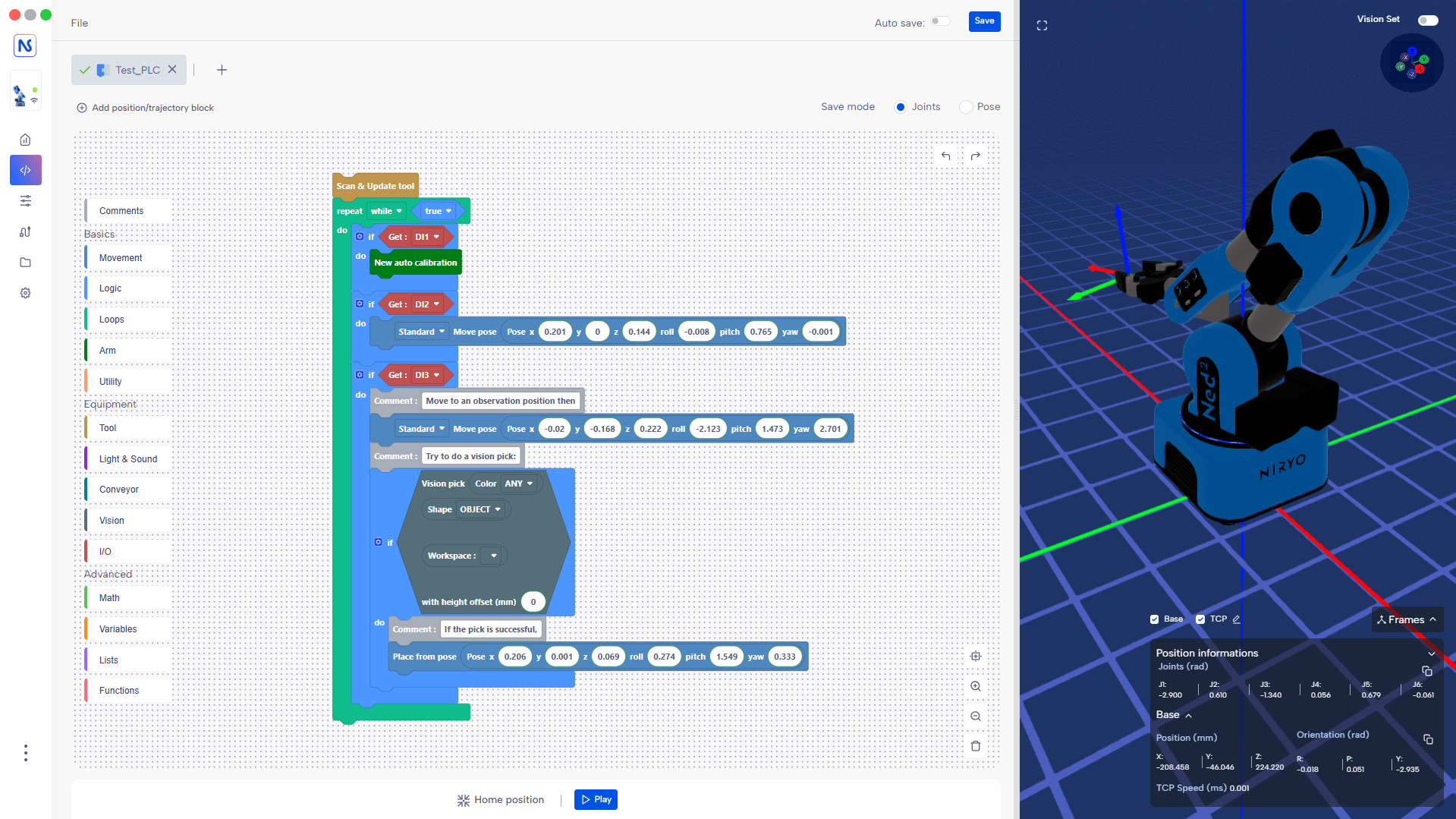
There is a Blockly version, which can be found here.
Tests
In CCW Software, go to the Main-POU and double-click on the Button1 contact.
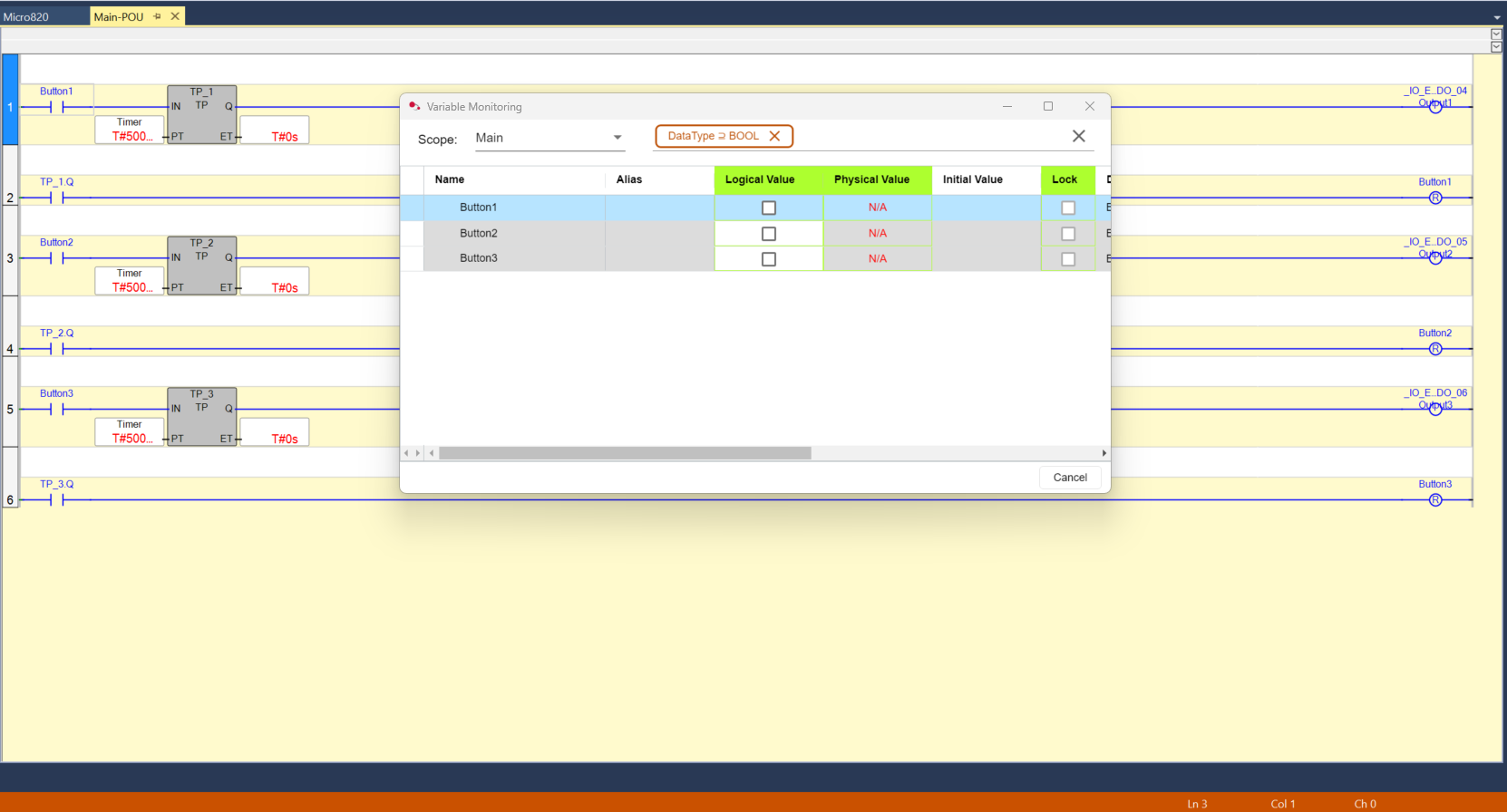
To activate a button, check the box in the Logical Value column. Now we can control the robot with this PLC.