


STEP 5: First moves with your robot
General overview:
Here is a video on how to
- Move the robot with the Direct Move mode
- Create your first programm to move the robot with Blockly
🔎Get a deeper understanding - Direct Move
The direct move tab allows you to control easily the robot and also get states informations. You can also create and save position configuration on this tab.
Jog Control
The Jog Control feature allows you to move the robot in real time, either by controlling its joints individually or by moving along a specific axis.
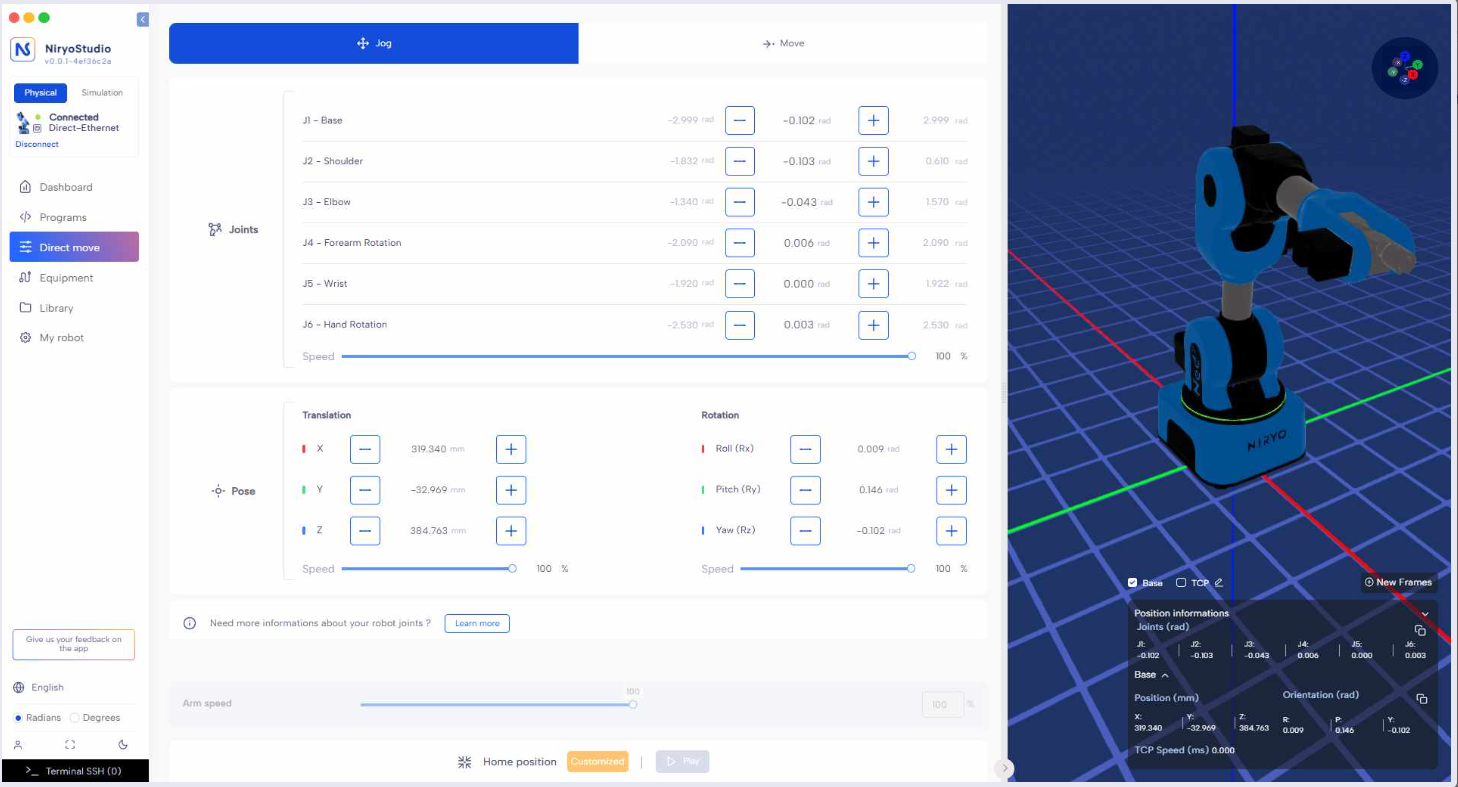
- To start the movement, simply hold down the + or – button with the left mouse click.
- To stop the movement, release the mouse click.
- You can adjust the robot’s movement speed using the slider located in the section corresponding to the desired type of movement (joints or pose).
The arm speed setting is disabled on this screen. The movement speed is adjusted exclusively through the speed sliders of each section.
Move Control
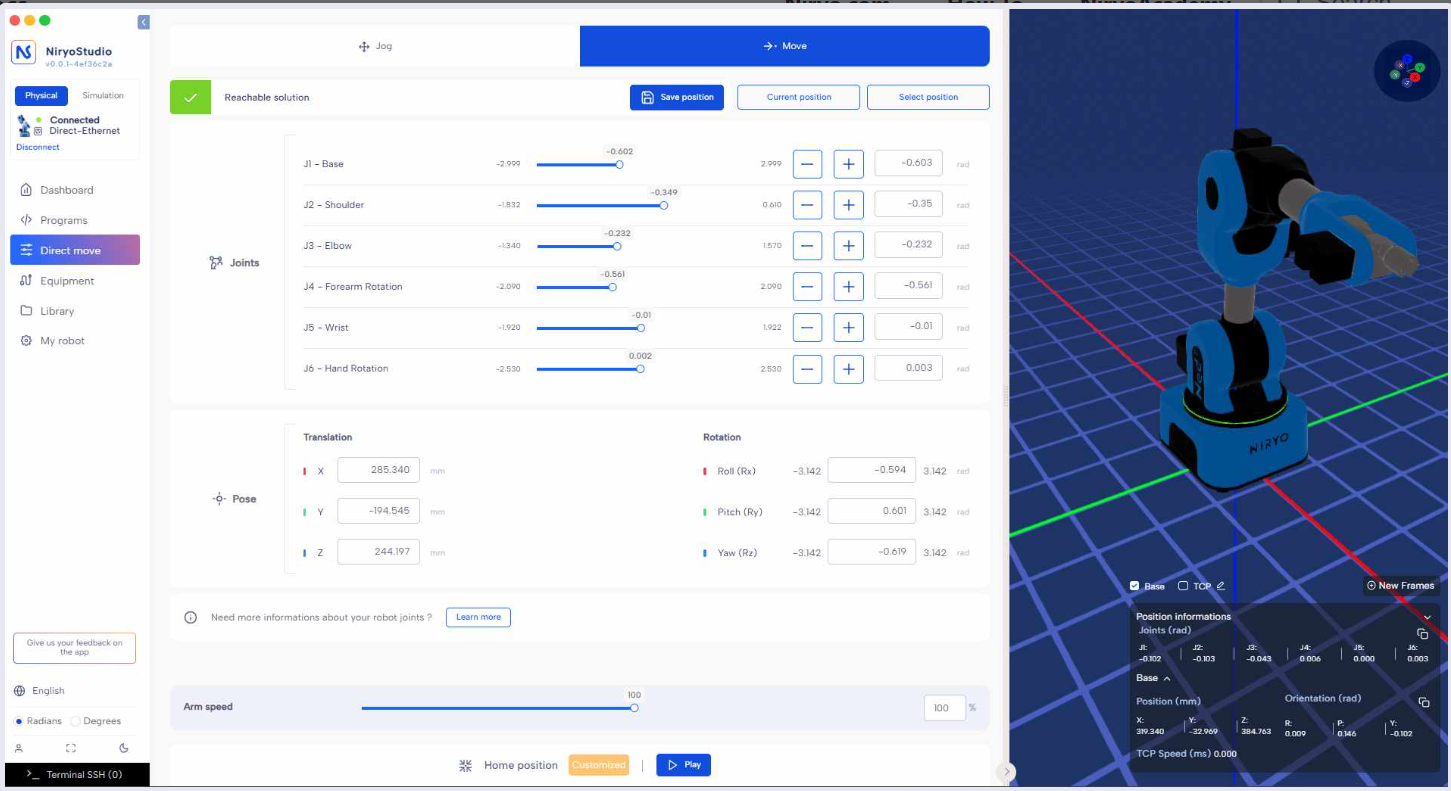
The Move Control section allows you to move the robot by setting precise joint values or pose coordinates.
This mode is used for defining exact positions that can later be saved and reused.
How it works
The Move Control operates in two steps:
- The user defines the desired values (either a target pose in Cartesian space or specific joint values).
NiryoStudio automatically computes the corresponding pose or joint configuration and checks whether the position is reachable within the robot’s constraints. A message will confirm if the solution is reachable or not. - Once validated, the user can click the Play button to execute the movement.
This ensures that the robot only moves to positions that are physically achievable and safe.
Control
- Joint Control (J1 to J6): Set the desired angle for each joint of the robot. You can use the slider or the + / – buttons to adjust the values.
- Pose Control (Translation & Rotation): Define the robot’s position in Cartesian space by entering values for:
- Translation: X, Y, Z (in millimeters)
- Rotation: Roll (Rx), Pitch (Ry), Yaw (Rz) (in radians or degrees)
Load / Save Position
- Save Position: Once the robot is placed in the desired configuration, click Save position to store it in your library for later use.
- Current Position: Copies the robot’s real current position and updates both the joint values and the pose values in the Move interface.
- Select Position: Choose a previously saved position and move the robot to it.
Speed Control
The Arm speed slider at the bottom of the screen controls the overall speed of the robot when executing movements in this mode.s
FreeMove
You can move freely the robot by holding the FREEMOTION button on the end effector of the robot.
🚀 Quick start
You can also download the Blockly program directly here.