


Start with Conveyor Belt
General overview:
Here is a video on how to
- Connect your conveyor belt
- Control the conveyor belt manually or with NiryoStudio
- Understand how to use the Blockly blocks to control the grippers
🔎Get a deeper understanding
Find the technical specifications of our grippers here.
STEP 1: Setup manually your conveyor belt
- First, connect the robot control connector on the motor side of the Conveyor Belt on the back of Ned2 on port A or B.
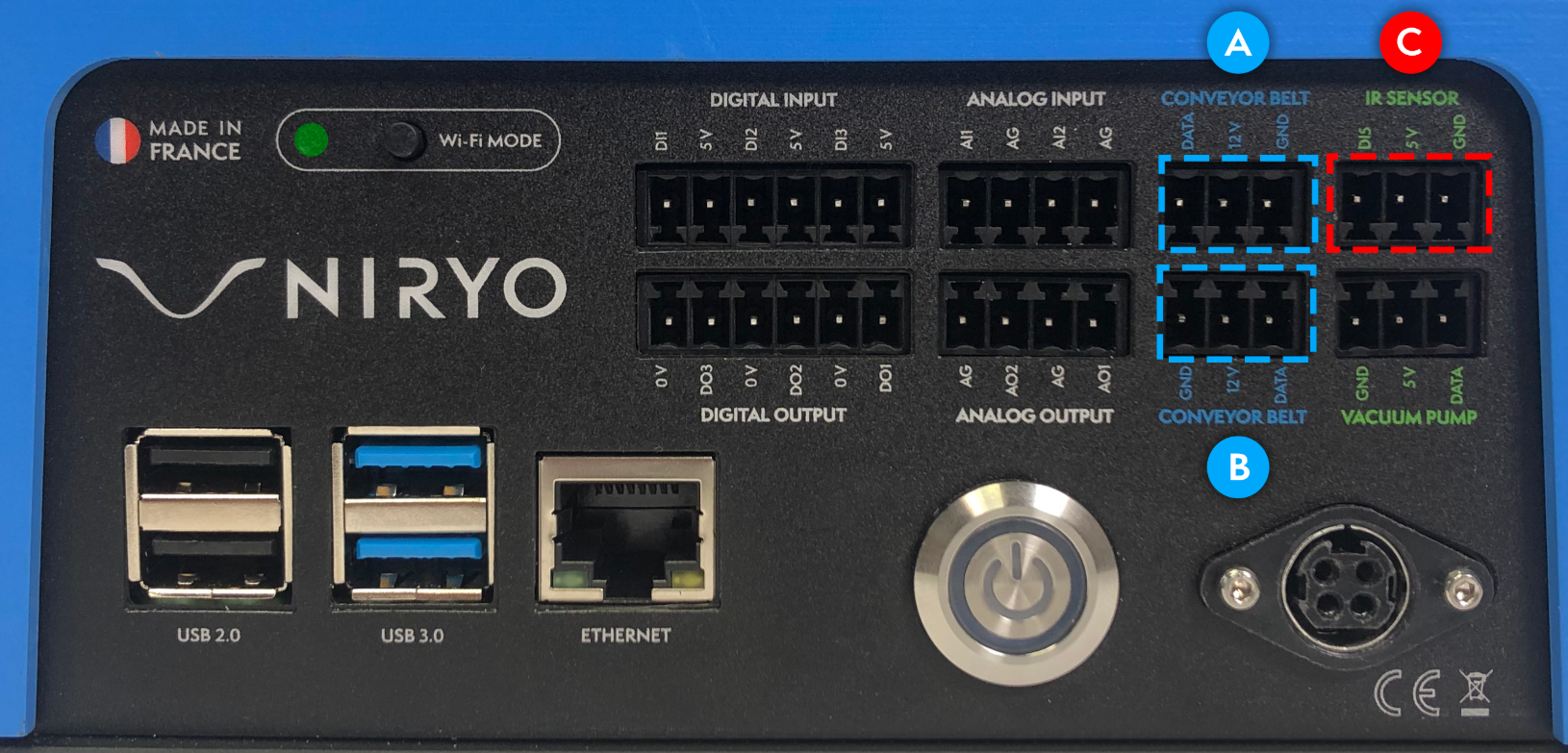
- To use the infrared (IR) sensor with the Conveyor Belt and the robot, connect the sensor to the back of Ned2 (Port C).
STEP 2: Control with the control box
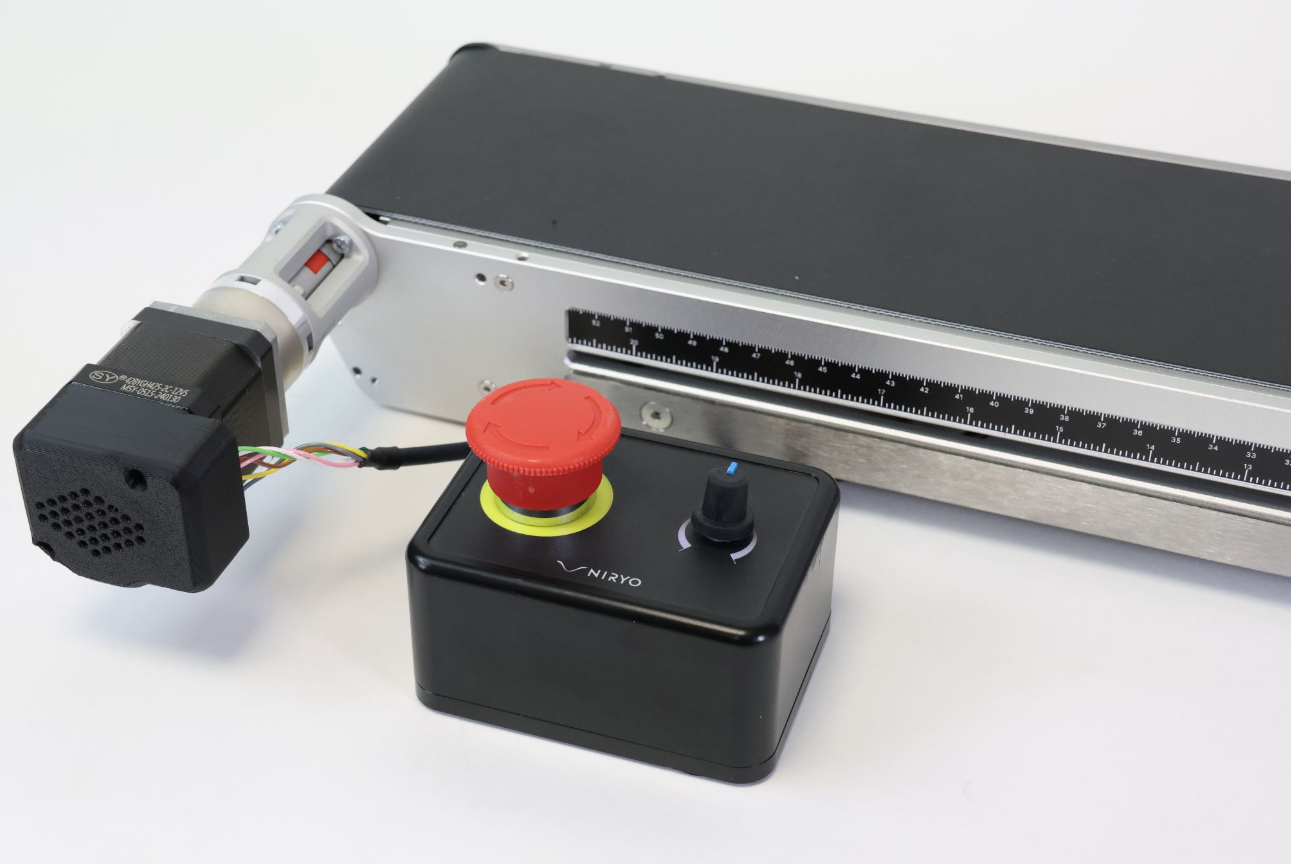
The Conveyor Belt can be controlled using an optional control box.
-
First, plug the control box to the conveyor and make sure the red button is pressed
-
Then plug the power supply to the control box and turn the red button, the led in the conveyor motor should be green
-
Now you can control the conveyor speed and direction with the control box using the rotary potentiometer next the red button.
The rotary potentiometer allows you to control the speed and the direction of your conveyor.
When the potentiometer is at its origin, centered, the Conveyor Belt is stopped.
The more you turn the potentiometer clockwise, the fastest the Conveyor Belt will move forward.
Conversely, the more you turn the potentiometer counterclockwise, the fastest the Conveyor Belt will move backward.
STEP 3: Control your conveyor belt in NiryoStudio
- In "Equipment" you can control any accessories connected to the robot. Each one will have their specific parameters.
- Click on "New Scan" to start using your equipment in NiryoStudio
- Alternatively, you can use the block "Scan & update tool" to run a scan of all the I/O of the robot and start using the tools in your Blockly program.
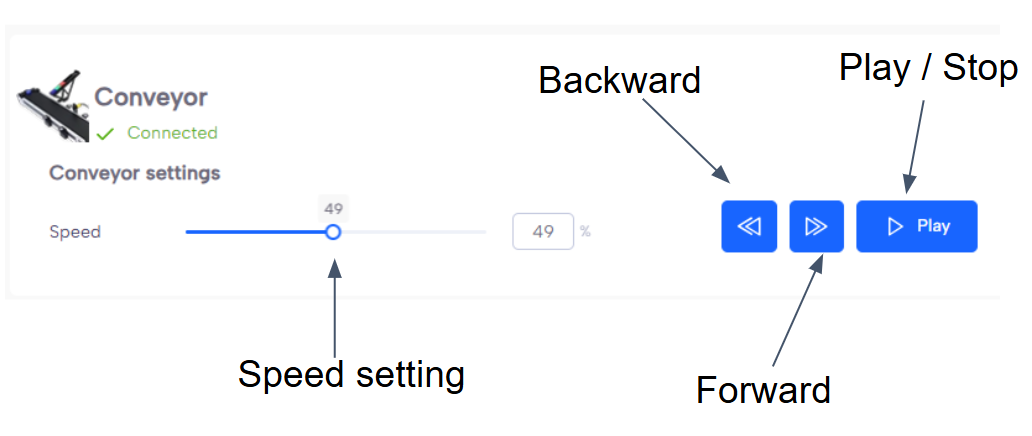
- You can control up to two Conveyors directly. You can control their speed and direction.
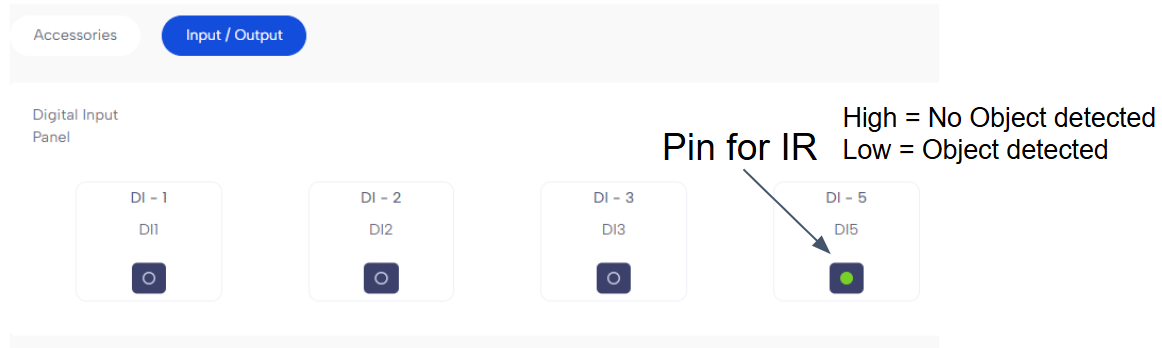
- The IR sensor can be controlled in the Input / Output tab.
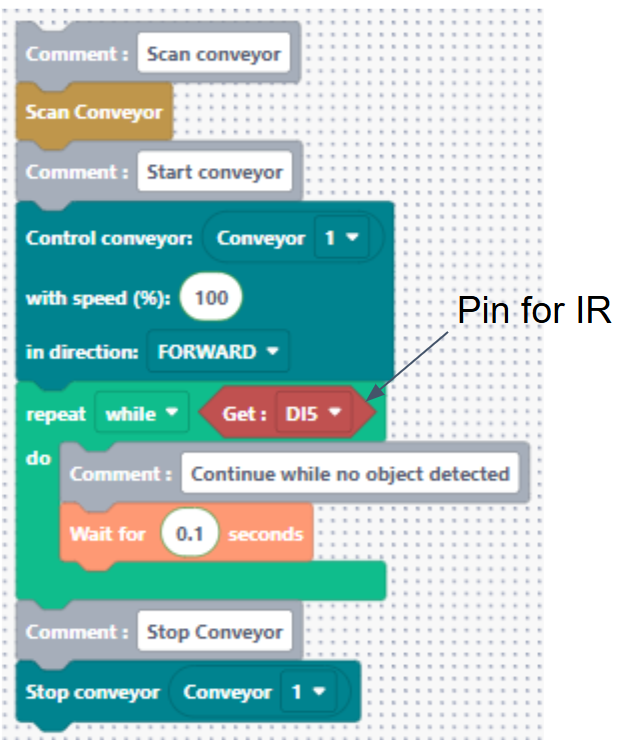
STEP 3: Start using your conveyor belt in your program
These are the blocks necessary to start using your tools:
💡 Quick start
You can also download the Blockly programs here: